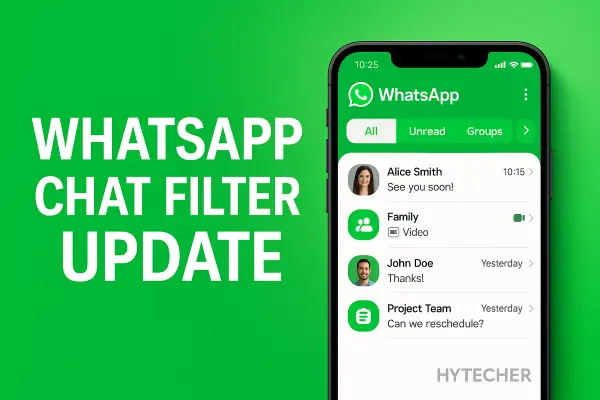
Managing dozens of personal messages, work groups, family chats, and unread notifications on WhatsApp can quickly become overwhelming. To fix this, WhatsApp has finally released a new chat filter update that introduces three simple tabs — All, Unread, and Groups — making navigation much easier for everyday users. You can check this in WhatsApp Official Blog.
This new WhatsApp chat filter update is now rolling out globally across Android, iOS, Web, and Mac, helping users find the right messages without endless scrolling. The update is especially useful for people who get too many messages every day.
When this feature first appeared on my phone after updating WhatsApp, the Unread tab immediately cleaned up my messy inbox and helped me reply faster — so the difference is really noticeable even for light users.
What Is the New Chat Filter Feature in WhatsApp? (Quick Overview)
Meta’s official newsroom also highlights WhatsApp’s ongoing updates, confirming that new chat-management features like this are part of a larger effort to make conversations easier to navigate.
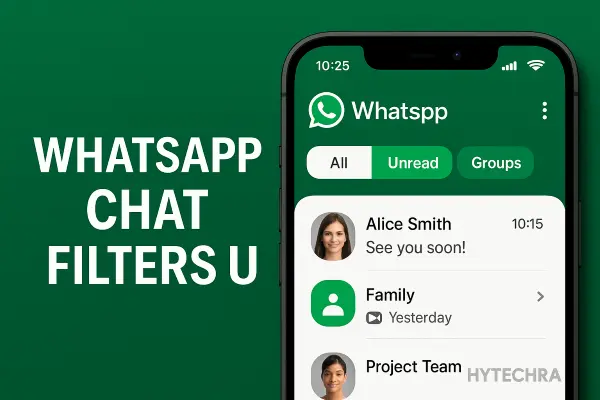
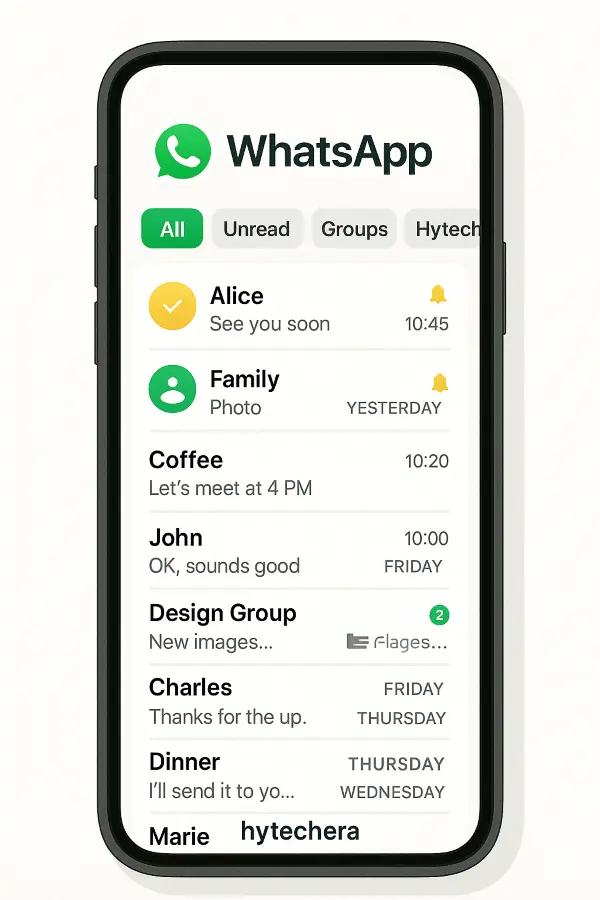
WhatsApp has introduced a new filter bar at the top of your chat list with three simple tabs:
✔ All
Shows all your chats — the default view.
✔ Unread
Displays only the chats you haven’t opened yet.
✔ Groups
Shows all the group chats, separated from personal chats.
This might look like a small update, but it has a huge impact on usability. Instead of scrolling through mixed conversations, you can jump directly to the category you want.
Why WhatsApp Added This Feature:
- Growing number of group chats
- High unread message volume for many users
- Faster navigation for people with long chat lists
- Better organization for work + personal accounts
- Makes WhatsApp feel closer to Gmail-style filters
This update is rolling out gradually, so not everyone will receive it at the same moment — similar to all major WhatsApp feature releases.
WhatsApp Chat Filter Update: What’s New in 2025?
The update is part of WhatsApp’s ongoing redesign to make the app faster and simpler. Here’s what’s new in the 2025 version of the feature:
New filter bar above the chat list
A horizontal bar with three tabs: All, Unread, Groups.
Consistent UI on Android, iPhone, Mac, and Web
Same design everywhere for easier switching between devices.
Works with archive, mute, and pin features
You can still use Archive + Filter together.
Filters update in real-time
New unread messages automatically jump into the Unread tab.
Filters sync across devices
If you read a message on Web, it disappears from the Unread tab on your phone too.
Better for privacy & productivity
Helps you avoid missing important messages buried under group chats.
This rollout is part of WhatsApp’s bigger plan to organize and declutter chat lists, especially for users who receive hundreds of messages every day.
Who Will Get the New Chat Filter Feature? (Rollout Status 2025)
The update has started rolling out globally but follows the usual phased pattern. Here’s the current status:
Android Users
Most users can see the update after installing the latest version from Play Store.
The filter bar appears automatically at the top of chats.
iPhone (iOS) Users
Rolling out slightly slower than Android but available in the latest iOS update.
WhatsApp Web
Many users already see the filters in the sidebar.
If not, try refreshing or logging out/in.
Mac App (Native App)
The update is already visible in recent builds.
Beta Testers
Beta users received the feature earlier — now stable users are getting it.
Region-Based Rollout
Some users will receive the update a few days later depending on region, device type, and app version.
How to Use the New WhatsApp Chat Filter (Step-by-Step Guide)
The new filter bar appears automatically once you update WhatsApp.
Here’s how to use it on every device:
1️⃣ How to Use Chat Filters on Android
- Open WhatsApp
- Look at the top of your chat list
- You will see three tabs: All | Unread | Groups
- Tap Unread to see only messages you haven’t opened
- Tap Groups to view only group chats
- Tap All anytime to return to normal view
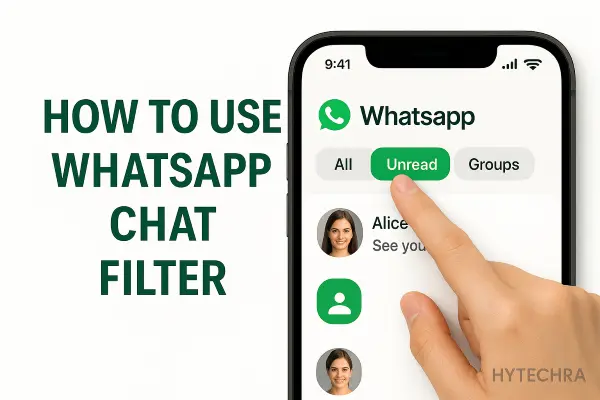
On my Android phone, the Groups tab instantly separated family groups, work groups, and community chats — no more scrolling through everything mixed together.
Also read –>> Reduce Ping in Mobile Games 2025 — Full Lag Fix Guide
2️⃣ How to Use Chat Filters on iPhone (iOS)
- Update WhatsApp to the latest version
- Open the app — the filter bar appears above the chat list
- Tap Unread for unread messages
- Tap Groups to view all group conversations
- Use All to return to the combined view
This feature works the same on both Android and iPhone, which makes switching devices smoother.
3️⃣ How to Use Chat Filters on WhatsApp Web
- Open web.whatsapp.com
- On the left sidebar, you will see All / Unread / Groups
- Click Unread to quickly check pending messages
- Click Groups to separate group conversations
The Web version refreshes automatically — so if you read a message on your phone, it will disappear from the Unread filter here too.
4️⃣ How to Use Chat Filters on WhatsApp Mac App
- Update WhatsApp on your Mac
- The filter options appear at the top of your chat pane
- Click Unread or Groups as needed
- Return to All anytime
The Mac app received the update early, so most users can already use the chat filters.
Benefits of the New WhatsApp Chat Filter (Why It Matters)
This update is not just a small UI change — it actually improves messaging experience for everyday users.
1. Faster Chat Navigation
Jump between unread, personal, and group chats without scrolling.
2. Perfect for Busy Users
People who get 50–100+ messages daily benefit the most.
3. Great for Group Admins
Helps sort through admin groups, class groups, work groups, or hobby communities.
4. Reduces Notification Stress
Unread messages stay in one place until you open them.
5. Clean Inbox Look
Your chat list feels much more organized.
6. Saves Time
Finding important messages becomes easier.
After using the update for a week, I noticed I was replying faster because all my unread messages were neatly grouped — something old WhatsApp never handled well.
Chat Filter vs Old WhatsApp Inbox Tools — What’s Different?
Earlier, users depended on:
- Search
- Archive
- Mute
- Pin chats
- Mark as unread
These features helped, but they were not designed for fast navigation.
Why the new filter is better:
- One-tap sorting
- No need to scroll
- Groups separated automatically
- Unread chats isolated clearly
- Works across phone + web + desktop
- Updates live as messages arrive
Quick comparison:
| Feature | Old Method | New Chat Filter |
|---|---|---|
| Unread view | Hard to find | One-tap tab |
| Groups view | Mixed with chats | Separate tab |
| Search needed? | Yes | No |
| Time saving | Low | High |
| Multi-device sync | Limited | Full sync |
The new system behaves more like Gmail’s tab categories — simple and efficient.
Troubleshooting — Chat Filter Not Showing? (Fixes You Must Try)
If you don’t see the filter bar yet, don’t worry.
Because the WhatsApp chat filter update is rolling out gradually, many users will get it slightly later.
Try these fixes:
1. Update WhatsApp to the latest version
Go to Play Store / App Store and update manually.
2. Restart the app
Force close and reopen.
3. Clear cache (Android only)
Settings → Apps → WhatsApp → Storage → Clear Cache.
4. Log out & log back in
Works for WhatsApp Web/Desktop.
5. Join WhatsApp Beta
Beta users often get features earlier.
6. Reinstall WhatsApp
This refreshes all UI elements.
7. Wait for regional rollout
Sometimes filters take a few days to appear on all devices.
The filter didn’t appear on my WhatsApp Web initially — it showed up only after signing out and signing in again.
Also read –>> Phone Battery Draining Fast? 15 Reasons & Fixes 2025
Best Tips to Organize Your Chats with the New Filters
The new filter system becomes even more powerful when you combine it with WhatsApp’s existing tools.
Here are practical ways to keep your inbox clean:
1. Use Unread every morning
Check the Unread tab first thing — it ensures you don’t miss important messages buried inside group spam.
2. Clean up groups using Groups tab
Perfect for business groups, project groups, school groups, and admin tasks.
3. Archive inactive chats
Swipe → Archive old or irrelevant chats.
They disappear from All/Unread/Groups until needed.
4. Mute high-activity groups
Muted groups won’t distract you but remain available in the Groups tab.
5. Pin your top 3 chats
Keep your most important conversations right at the top.
6. Combine filters + search
Filters reduce clutter; search helps you find older messages quickly.
7. Sync across devices
If you read messages on WhatsApp Web, the Unread tab clears instantly on your phone.
Also read –>> Android 15 Beta Features Leaked: Everything New for 2026
Conclusion — WhatsApp’s New Chat Filter Makes Messaging Faster & Cleaner
The new WhatsApp chat filter update is one of the simplest yet most useful changes WhatsApp has released in years.
With separate All, Unread, and Groups tabs, users can finally manage their conversations without endless scrolling.
After using this update for a week, I’m replying faster, missing fewer messages, and spending less time hunting through long chat lists.
If you haven’t received the update yet, don’t worry — it’s rolling out gradually.
Just keep your app updated, and the new filters will appear soon.
Frequently Asked Questions (FAQs)
- 1. Why is the WhatsApp chat filter update not showing on my phone?
Because the rollout is phased. Update WhatsApp, clear cache, or wait a few days.
- 2. Will chat filters delete or hide any messages?
No. Filters only reorganize your inbox — nothing is deleted.
- 3. Are filters available on iPhone?
Yes, the All / Unread / Groups tabs are available on iOS after updating the app.
- 4. Does the chat filter update work on WhatsApp Web?
Yes. WhatsApp Web and Mac apps also support filters.
- 5. Do archived chats appear in filters?
No. Archived chats stay hidden until unarchived.
- 6. Does this update work for WhatsApp Business?
Yes, the update is rolling out to both WhatsApp Messenger and Business users.