Public Wi-Fi has become a normal part of our daily lives. Whether you’re at an airport waiting for your flight, sitting in a café, taking a break in a mall, or traveling on public transport, free Wi-Fi makes it easy to stay online without using mobile data. But what most people don’t realize is that connecting to a public hotspot is one of the riskiest things you can do to your phone or laptop. This public Wi-Fi safety guide will help you about how to Stay Safe Online.
In this first part of the guide, you’ll understand exactly what public Wi-Fi is, why it is unsafe, what kind of cyber attacks happen on these networks, and how hackers take advantage of unsuspecting users.
1. What Exactly Is Public Wi-Fi?
Public Wi-Fi is any open, shared, or free wireless network that allows multiple people to connect at the same time. Most of the time, you’ll find these networks in places where people spend long durations:
- Airports
- Cafés and restaurants
- Hotels
- Railway stations
- Bus terminals
- Colleges and hostels
- Shopping malls
- Tourist locations
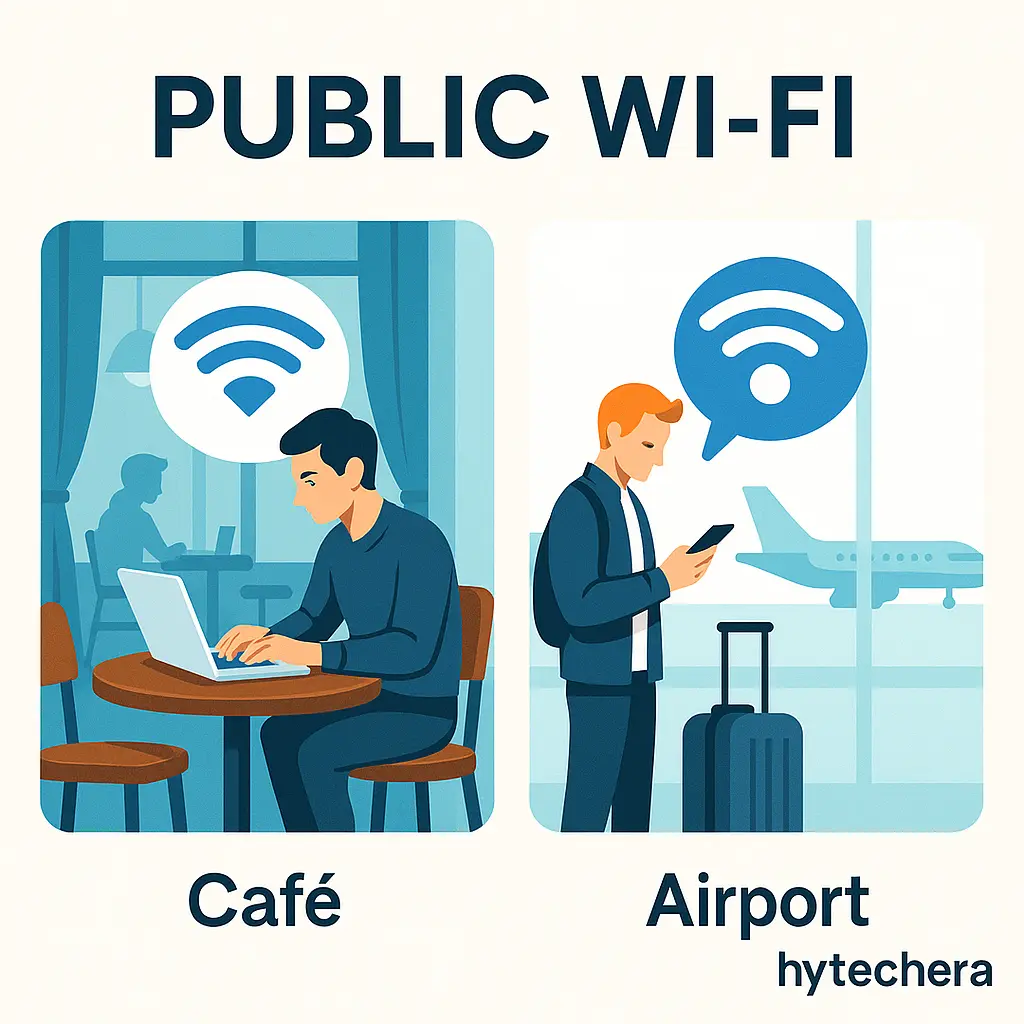
These Wi-Fi networks are typically meant for convenience, not security. Because hundreds of people use the same connection, the network becomes open, predictable, and easy to exploit. Hackers love public Wi-Fi because they don’t need access to your device—just being on the same hotspot gives them chances to attack.
✔ Key point:
Public Wi-Fi = Convenient but unsafe by design.
2. Why Is Public Wi-Fi So Risky?
Most users assume that if a Wi-Fi network is available in a trusted place—like a café, airport, or hotel—it must be safe. But this is not true. The risk doesn’t come from the place offering Wi-Fi. The risk comes from:
- Other users connected to the same network
- Hackers sitting nearby
- Fake hotspots created by attackers
- Lack of encryption
- Poor configuration
When the network is open or lightly secured, your data travels through the air without any protection. Anyone with basic technical skills can capture this data.
During a train journey, I connected to a free railway Wi-Fi thinking it was safe. Within minutes, I got a Google warning that someone tried to access my account from a new location. That’s when I realized even “official” public Wi-Fi is not fully secure.
3. Hidden Dangers of Public Wi-Fi
Based on insights from Norton, Kaspersky, and government cybersecurity guidelines, here are the most common dangers:
A. Man-in-the-Middle (MITM) Attacks
This is one of the most dangerous and common threats on public Wi-Fi.
Here’s the simple explanation:
When you connect to Wi-Fi, your data travels between your device and the hotspot.
A hacker sits in the middle and intercepts that communication.
They can secretly see:
- Websites you open
- Information you type
- Your login details
- Your browsing history
- Form data (including passwords if the site isn’t HTTPS)
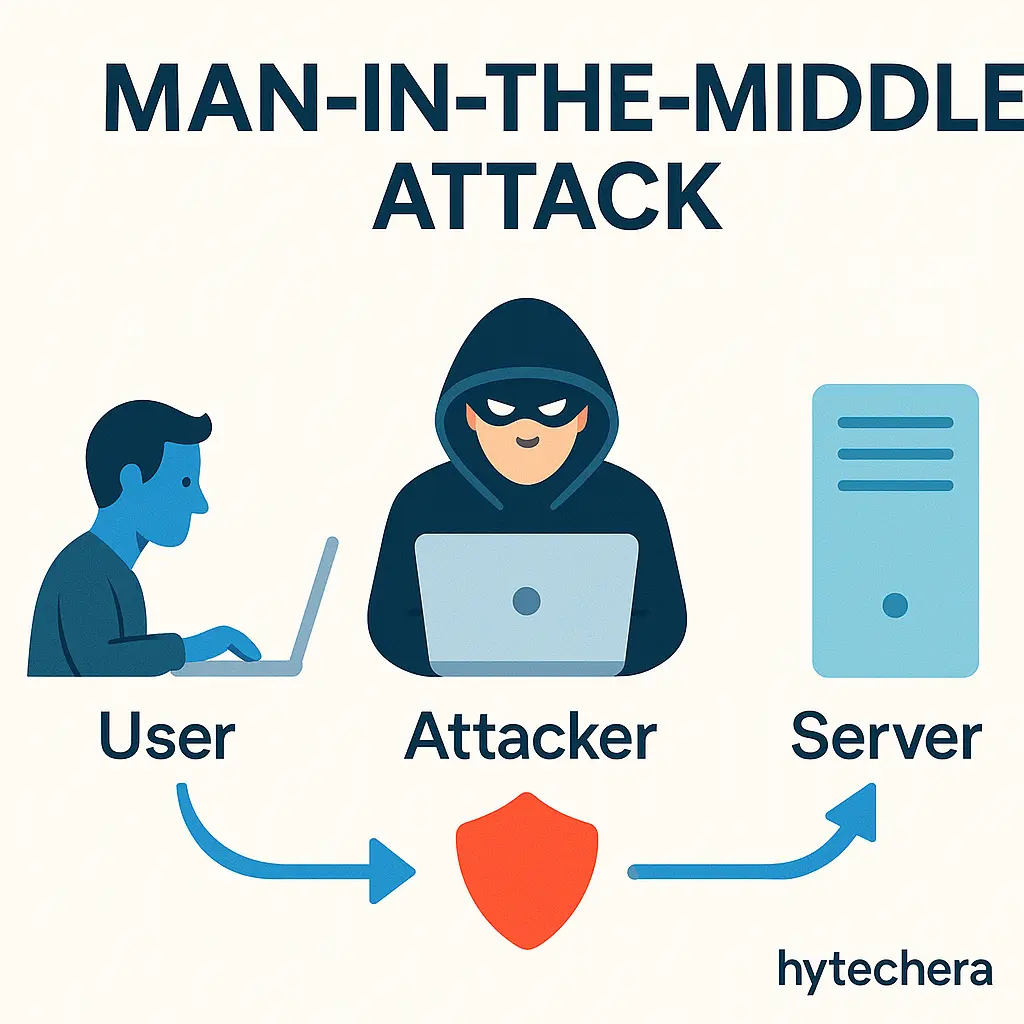
In many cases, you won’t even know someone is spying.
once used Wi-Fi at a café to check my mail. Later, I found someone tried to log into my Instagram account. That was the moment I understood MITM attacks are not “technical theory”—they happen in real life.
B. Fake Wi-Fi Hotspots (Evil Twin Networks)
Hackers create network names that look like real ones:
- Café_Guest_WiFi
- Airport_Wi-Fi_Free
- CoffeeDayFreeWiFi
Because most users don’t check authenticity, they connect immediately.
The hacker’s fake network then captures every piece of traffic you send.
This is one of the easiest ways for cybercriminals to:
- Steal passwords
- Hijack accounts
- Inject malware
- Redirect you to fake websites
In places like airports and malls, fake hotspots are extremely common.
C. Packet Sniffing
Even if the hotspot is real, attackers can use simple tools to capture unencrypted data packets.
You may think this requires advanced hacking, but even free tools allow beginners to do this.
D. Session Hijacking
Many websites use session tokens to keep you logged in.
Hackers can steal these tokens on public Wi-Fi and access your accounts without needing your password.
This can happen with:
- Social media
- Shopping accounts
- Cloud storage
This is why logging in on public Wi-Fi is the biggest mistake you can make.
E. Malware and Spyware Injection
Hackers can push:
- Keyloggers (record everything you type)
- Adware
- Trojan viruses
- Spyware
- Unwanted redirects
Fake login pages are very common on unsecured networks.
Also read –>> Dangerous Online Scams That You Need to Avoid in 2025
4. Signs a Public Wi-Fi Network Is Unsafe
While using public Wi-Fi, be cautious if you notice:
- Multiple networks with the same name
- No password required
- Redirected login pages
- Unusual pop-up ads
- Extremely slow connection
- Asking for unnecessary details (email, phone number)
- Staff denies having such a Wi-Fi network
If you see any of the above, it’s better to disconnect immediately.
How to Stay Safe on Public Wi-Fi + Real Examples + Practical Steps
Now that you understand how public Wi-Fi works and why it’s dangerous, the next step is learning how to protect yourself. Most people think “Don’t use public Wi-Fi” is the only solution, but that’s not realistic. We all use free hotspots sometimes — while traveling, working remotely, saving mobile data, or when network coverage is poor.
So instead of avoiding public Wi-Fi completely, the goal is to learn how to use it safely and minimize risk.
🛡️ 1. The Golden Rule: Never Use Public Wi-Fi for Sensitive Activities
The number one rule of public Wi-Fi safety is:
Avoid anything that involves personal or financial information.
Activities you must NEVER do on free Wi-Fi:
- UPI payments
- Net banking
- Shopping checkouts
- Email password resets
- Viewing private emails
- Logging into social media
- Opening work portals
- Accessing cloud storage
Even if the Wi-Fi is official (airport or hotel), the risk still exists — because it’s not the Wi-Fi itself, but other users on the network who can be dangerous.
Also read –>> Top Social Media Safety Tips to Protect Your Privacy Online
A friend once logged into his banking account using an airport Wi-Fi in Bangalore. Within minutes, his bank sent him an alert that someone tried to add a new beneficiary. He wasn’t hacked, but it was close. That incident taught all of us a strong lesson — never do banking on shared Wi-Fi.
2. Always Check the Authenticity of the Network
Before connecting, always verify with staff:
- “Which Wi-Fi is yours?”
- “What is the exact network name?”
- “Is there a password?”
Fake Wi-Fi (Evil Twin networks) look identical to real ones.
A hacker just needs to sit in the same café to create a duplicate network.
Safe example:
✔ Cafe_Bean_Guest
Unsafe example:
❌ CafeBean_FreeWifi
❌ Guest_Wifi_CafeBean (duplicate)
If multiple networks look similar, choose none until confirmed.
3. Avoid Connecting to Wi-Fi Networks Without a Password
Open Wi-Fi means:
- No encryption
- Anyone can join
- Anyone can sniff data
- Hackers can intercept everything
Protected Wi-Fi (with WPA2/WPA3 password) is safer, though still not perfect.
Rule:
If a Wi-Fi doesn’t have a password → treat it as dangerous.
4. Use a VPN — The Most Effective Protection
Even WaTech and Kaspersky strongly recommend VPN usage.
A VPN:
- Encrypts your internet traffic
- Prevents snooping
- Blocks MITM attacks
- Hides your identity
- Makes all public Wi-Fi safer
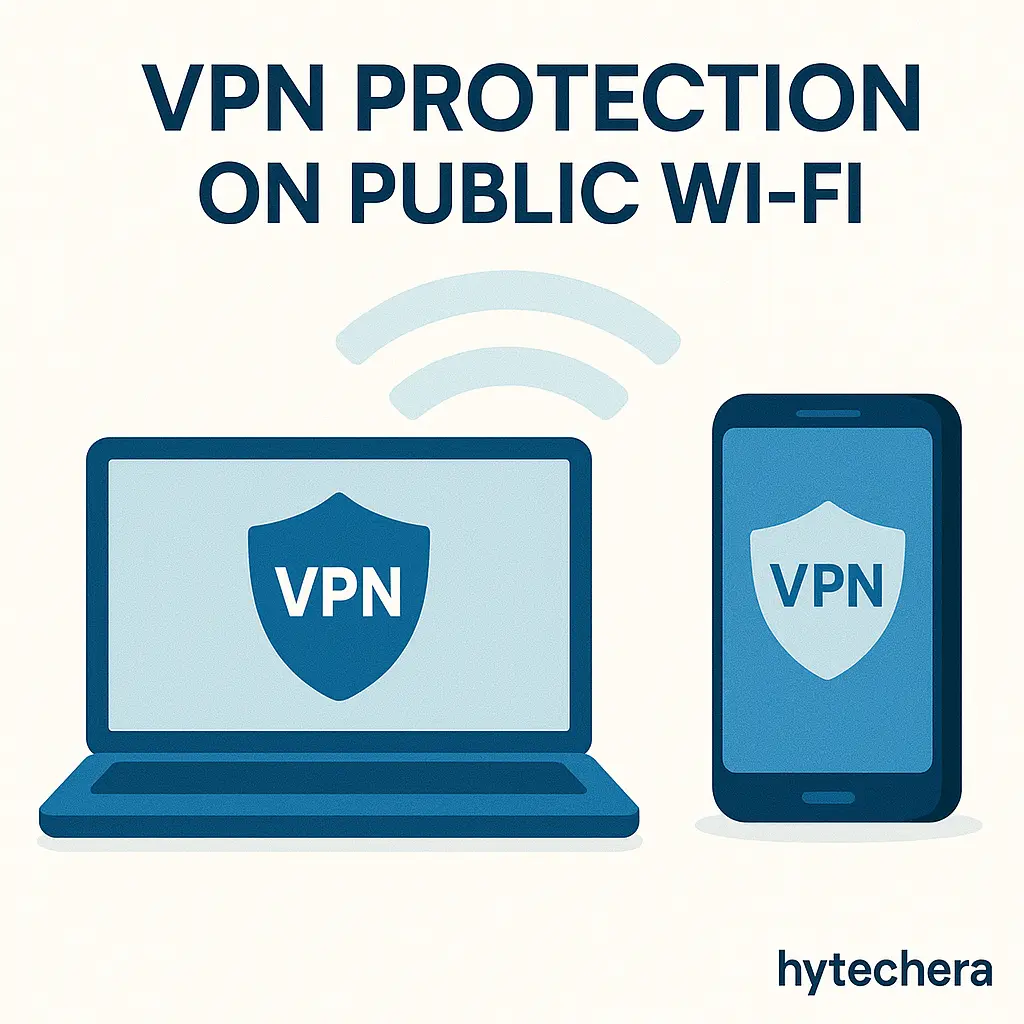
If you must use public Wi-Fi → VPN is mandatory.
Recommended VPNs:
NordVPN, Surfshark, ProtonVPN (free), ExpressVPN
in any public Wi-Fi safety situation, VPN is essential.
When I turned on Surfshark VPN during a café visit, the network suddenly stopped redirecting me to a suspicious login page. That’s when I understood how VPN blocks unsafe connections.
5. Keep “Auto-Connect” OFF on Your Device
Auto-connect is dangerous because your device might:
- Automatically join a fake network
- Connect to an old remembered hotspot
- Join a hacker-created network with same name
Always disable:
- Auto-join Wi-Fi
- Auto-connect to open hotspots
This one setting can prevent major attacks.
6. Check for HTTPS Before Entering Any Data
This is simple but extremely important.
Always look for:
✔ HTTPS
✔ Lock icon (🔒)
✔ Green/secure connection indicators
Never enter any information on:
❌ http:// websites
❌ Fake login pages
❌ Redirected URLs
❌ Sites with warnings
HTTPS encrypts your data — even on risky networks.
7. Turn OFF Bluetooth, File Sharing, and Hotspot
These wireless features open invisible doors for attackers.
Make sure you disable:
- Bluetooth
- Wi-Fi Direct
- Nearby Share
- Airdrop
- Mobile hotspot
- File sharing
Even if Wi-Fi is safe, Bluetooth attacks can still happen.
8. Keep Your Device Updated
Updates fix security holes.
Outdated devices = easier to hack.
Always update:
- Android/iOS
- Windows/macOS
- Browser
- Antivirus
- Security patches
This is frequently ignored but extremely important.
9. Use a Firewall or Security App
A firewall blocks suspicious connections.
- Windows → Firewall ON
- macOS → Firewall ON
- Android/iOS → Use built-in protections
- Optionally install: Norton / Kaspersky / Bitdefender
This gives an extra protective layer.
10. Avoid Logging In to Accounts (Unless VPN Is ON)
Login = sending identity information.
On unsafe Wi-Fi, this is the first thing hackers target.
Avoid logging in to:
- Email accounts
- Shopping apps
- Social media
- Office apps
- Payment apps
If login is unavoidable → VPN ON first.
Real-Life Examples of Public Wi-Fi Hacks
These are simplified versions of real incidents that experts report:
Example 1: Airport Fake Wi-Fi Trap
A hacker creates:
Airport_Free_WiFi
People connect, browse, and log into Instagram.
The attacker captures session tokens and takes over accounts.
Example 2: Coffee Shop MITM Attack
A hacker sits nearby with a laptop and opens packet sniffing tools.
Every user who opens unsecured websites unknowingly sends visible data.
Within minutes, attackers can see:
- Names
- Emails
- Browsing patterns
Example 3: Hotel Malware Injection
A hotel’s unsecured network redirects users to a fake login page.
When the user clicks “Continue”, spyware silently installs.
Public Wi-Fi Safety: What You Must Know Before Connecting
1. Advanced Public Wi-Fi Safety Tips
Once you master the basic protection steps (VPN, HTTPS, disabling auto-connect), it’s worth learning a few advanced safety habits that significantly reduce your online risk.
A. Use Two-Factor Authentication Everywhere
Even if a hacker steals your password on public Wi-Fi, two-factor authentication (2FA) prevents them from logging in. This adds a second barrier such as:
- OTP
- Authenticator app code
- Email verification
- Push notification
Most modern apps support 2FA, including Gmail, Facebook, Instagram, WhatsApp, and banking apps.
Cybersecurity companies like Norton and Kaspersky strongly emphasize enabling 2FA because it reduces hacking success by nearly 90%.
B. Disable “Sync in Background” on Public Wi-Fi
Background sync on apps like Google Photos, WhatsApp, Gmail, Facebook, and OneDrive sends a lot of data automatically. On public Wi-Fi, this data becomes vulnerable if the connection is compromised.
Switch off:
- Photo backup
- App auto-sync
- Cloud upload
This prevents accidental exposure.
C. Avoid Using Browser Extensions on Public Wi-Fi
Some browser extensions transfer data continuously. On public Wi-Fi, this data flow can be intercepted. Use incognito mode when possible to minimize extension activity.
D. Use Browser-Based Isolation (Secure Browser Profiles)
Some browsers like Brave, Firefox, and Edge offer secure browsing profiles that:
- Disable extensions
- Block trackers
- Limit data sharing
This adds one more shield while browsing on shared hotspots.
E. Prefer Apps Over Websites for Sensitive Work
Apps often use stronger encryption than browsers.
If you must check something important:
✔ Use the app (Gmail, Instagram, bank app)
❌ Avoid using website login pages
Apps send encrypted traffic even on risky networks.
2. What to Do If You Used Public Wi-Fi and Something Feels Wrong
Many users panic when they feel they connected to a dangerous network. Don’t worry — there is a recovery plan.
Follow this step-by-step sequence:
Step 1: Immediately Disconnect Wi-Fi
Turn off Wi-Fi from your phone/laptop settings.
Step 2: Turn On Mobile Data / Hotspot
Use a safe network before doing any recovery steps.
Step 3: Change Your Passwords
Change passwords for:
- Social media
- Cloud accounts
- Banking infrastructure
Use strong, unique passwords.
Step 4: Logout from All Devices
Many apps allow “Sign out from all devices”:
- Amazon
- Netflix
Do this especially if you suspect session hijacking.
Step 5: Enable Two-Factor Authentication (If Not Done Already)
This prevents hackers from reusing stolen credentials.
Step 6: Scan Device with Antivirus
Run a full scan using:
- Norton
- Kaspersky
- Bitdefender
- Malwarebytes
This detects malware or spyware injected during risky sessions.
Step 7: Check Your Accounts
Review:
- Bank transactions
- Email activity
- Social media login history
If anything looks suspicious → change passwords immediately.
Step 8: Clear Browser History & Cookies
This removes untrusted scripts and tracking files.
Once, after connecting to a café Wi-Fi, my browser started redirecting me to strange pop-ups. I immediately disconnected, cleared my cookies, scanned with Malwarebytes, and the issue disappeared. These quick actions really help prevent long-term problems.
3. Public Wi-Fi Safety Checklist (Simple + Saves Time)
- Always verify the correct Wi-Fi name
- Never use public Wi-Fi for banking
- Turn off auto-connect
- Turn on VPN every time
- Ensure websites have HTTPS
- Disable Bluetooth and file sharing
- Avoid logging in without VPN
- Keep device updated
- Use firewall/security app
- Disconnect and forget network after use
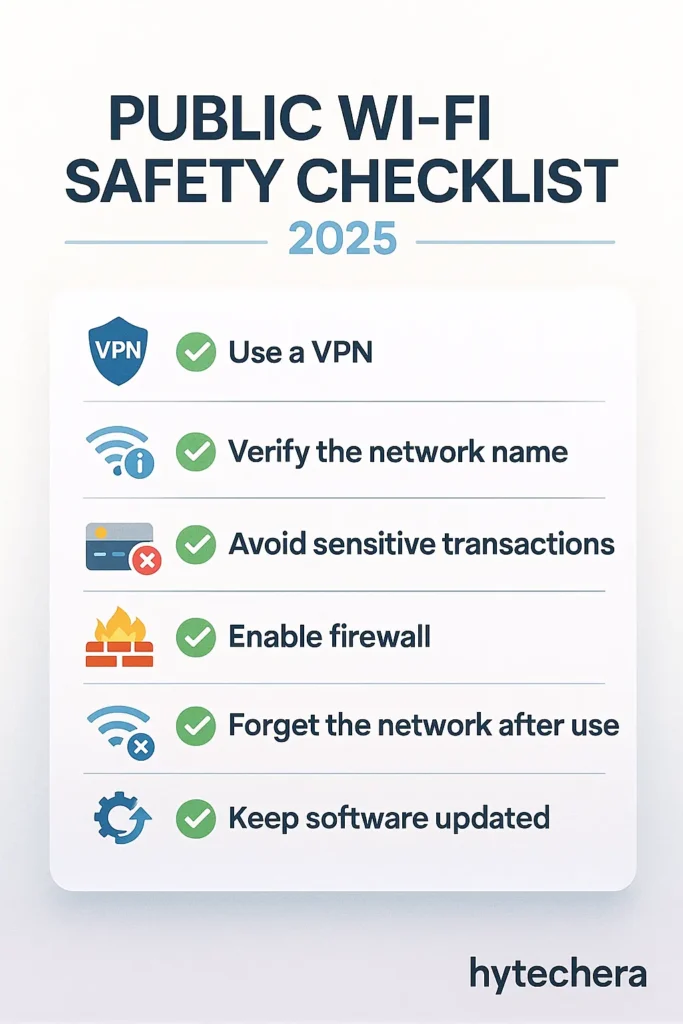
This cheat sheet helps you stay safe even when you’re in a hurry.
4. Best Alternatives to Public Wi-Fi (Safer Options)
If you rely heavily on internet while traveling or working remotely, consider using safer alternatives instead of unknown hotspots.
A. Mobile Hotspot from Your Phone
Your safest option.
4G/5G hotspot is far more secure than public Wi-Fi.
B. Portable Wi-Fi Devices (JioFi, Airtel Hotspot)
These USB-style devices create a secure private network wherever you go.
Perfect for students or professionals.
C. Using VPN Over Public Wi-Fi
If you MUST use public Wi-Fi, always turn ON VPN before opening anything important.
D. Personal Travel Router
Small pocket routers can encrypt public Wi-Fi before passing it to your device.
Conclusion
Public Wi-Fi is convenient, but convenience often comes with risk. Hackers take advantage of open networks, especially when travelers, students, or remote workers unknowingly connect to unsafe hotspots. The good news is that staying safe doesn’t require technical knowledge — only awareness and simple habits.
By verifying the network name, avoiding sensitive transactions, enabling VPN, checking HTTPS, keeping your device updated, and disabling risky settings like auto-connect and Bluetooth, you significantly reduce your exposure to cyber threats.
Follow these public Wi-Fi safety rules every time you connect. With the right precautions, you can enjoy the convenience of free internet without giving hackers free access to your personal information.
FAQs - Public Wi-Fi Safety Guide 2025
- 1. Is public Wi-Fi safe to use?
Public Wi-Fi is convenient but not fully safe. Anyone connected to the same network can potentially intercept unencrypted data. You can use public Wi-Fi safely only if you follow protection steps like using a VPN, avoiding logins, and checking HTTPS.
- 2. Can someone hack my phone on public Wi-Fi?
Yes. Hackers can perform attacks such as Man-in-the-Middle (MITM), Evil Twin hotspots, or packet sniffing. They can intercept browsing data, session tokens, or redirect you to fake login pages.
- 3. Is it safe to do online banking on public Wi-Fi?
No. Banking, UPI payments, and entering card details should never be done on public Wi-Fi. Even hotel or airport Wi-Fi may not be secure. Always switch to mobile data for financial activities.
- 4. How do I know if a public Wi-Fi network is fake?
If a Wi-Fi network has a name similar to a real one (duplicate), requires no password, or redirects you to strange sign-in pages, it might be fake. Always verify the official network name with staff.
- 5. Does VPN protect me on public Wi-Fi?
Yes. A VPN encrypts your connection and prevents hackers from reading your online activity. Even if the public network is unsafe, a VPN adds a strong layer of protection.
- 6. What should I avoid doing on public Wi-Fi?
Avoid logging into sensitive accounts, online shopping, banking, opening private emails, or accessing work dashboards. Anything involving personal information should be avoided.
- 7. Can I watch YouTube or browse normally on public Wi-Fi?
Yes, casual browsing and watching videos are generally safe as long as you avoid logging in and do not enter sensitive information. Using a VPN adds extra safety.