Mobile data is one of the biggest mobile frustrations — especially when your phone burns through gigs before the billing cycle ends. You’re sure you didn’t stream much or download large files, yet the meter is dropping fast. That’s because data drain isn’t always caused by what you consciously do. Often, hidden system activities, background apps, syncing behavior, or network inefficiencies quietly sip on your data even when you’re not actively using your phone. Mobile data draining fast is a common problem where background apps and system services consume data even when you’re not actively using your phone.

In this guide, we’ll break down the real reasons mobile data drains quickly, explain how different smartphone services — including some system processes that run in the background — contribute to data usage, and show you smart fixes you can apply today. This is a practical, user-first guide based on both official mobile network behavior and real usage patterns.
Whether you’re on Android or iOS, the principles remain similar — you need to understand where data is going, not just count gigs.
Why Mobile Data Can Disappear Faster Than You Think
Mobile data doesn’t drain only from obvious activities like video streaming or downloads. A combination of system behaviors and app patterns also consume data silently. Let’s unpack these hidden causes one by one.
1. App Background Activities & Auto Updates
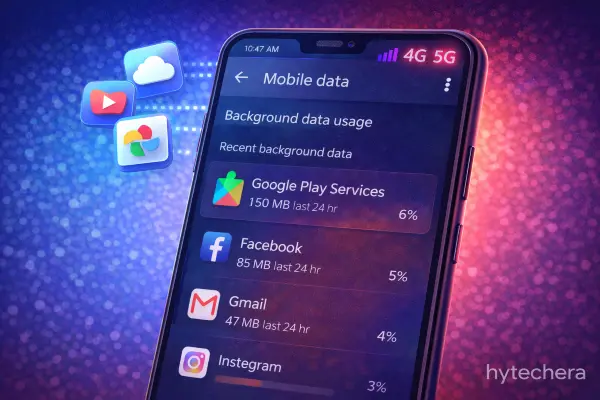
Modern apps don’t wait for you to open them to do work. Many apps sync in the background, download updates, refresh content, and pre-load data so that the next time you open them, they appear instantly ready. This is convenient, but it uses data — sometimes a lot.
Official network and security guidance notes that background syncs and automatic updates are prime contributors to unseen data usage, especially when:
- apps are set to auto-refresh content,
- automatic updates are enabled over mobile data,
- multiple apps sync in parallel.
These updates and syncs are designed to make the user experience smooth, but without proper settings they can quickly eat into your data allowance.
Also read –> Google Play Services Battery Drain: Why It Happens & How to Stop It
In my previous phone, I noticed a big jump in data usage every time my email and social media apps refreshed in the background before I ever unlocked the screen that day.
Google explains how apps and system services manage mobile data usage in its official Android documentation.
In many cases, mobile data draining fast is caused by background sync, cloud backups, and unstable network connections.
2. Push Notifications & Social Media Refreshes
Push notifications themselves are tiny packets — but the way many apps keep connections alive to deliver them can result in persistent data connections. Every time your phone wakes briefly to check for messages, feed updates, or notification tokens, it uses a small amount of data. It adds up quickly.
Some messaging and social media apps can request data frequently throughout the day, multiplying these small costs into noticeable data drain, especially if they also fetch thumbnails and media previews.
3. Streaming Quality & Pre-Caching
Many streaming services don’t just download what you watch — they often pre-cache content or high-quality media to ensure smoother playback. That means:
- High video quality selected automatically
- Pre-buffering for ad breaks
- Pre-fetching “next item” in playlists
Even when you think you’re only partially watching something, there might be extra data consumed in the background that you never actually viewed.
4. Network Handovers and Signal Drops
Mobile networks constantly switch between LTE, 5G, and Wi-Fi when you move around. These handover events can cause repeated data retransmissions due to brief interruptions — the network retries packets, using up more data than expected.
Official network performance guidance confirms that unstable connections can cause higher than expected data usage because of repeated packet transfers and retries, even when apps appear idle.
Also read –>> How to Fix Wi-Fi Connected but No Internet on Android
This tends to happen more in areas with fluctuating signals, especially where the phone moves between base stations — for example, moving from urban areas into suburban zones.
Poor signal strength can cause repeated data retransmissions, as explained in official mobile network performance guides.
5. System Services & OS-Level Syncs
Beyond third-party apps, your phone’s operating system itself can use data for:
- OS updates
- App store metadata
- Security patches
- Cloud backups (photos, settings)
Some system services are set to use mobile data by default, particularly when Wi-Fi isn’t available, and can silently consume significant amounts of data.
In my own use, I once saw mobile data disappear within a day even though I hadn’t streamed videos or downloaded files. On checking data usage breakdown, the culprit wasn’t a social app — it was a combination of background app refresh + OS updates + photo backup uploads that had never been restricted over mobile data. Once I adjusted those settings, my daily data usage dropped dramatically.
6. Cloud Backups Running on Mobile Data
Cloud services are designed to protect your data, but they don’t always wait for Wi-Fi. Photo backups, file syncs, and even app data uploads can silently use mobile data when Wi-Fi is unavailable or unstable.
This is especially common when:
- Wi-Fi disconnects briefly
- You move out of range
- The phone switches to mobile data automatically
Many users assume backups happen only on Wi-Fi, but default settings don’t always enforce that.
✅ Smart Fix
Go to your cloud app settings (Google Photos, iCloud, OneDrive):
- Set Backups → Wi-Fi only
- Disable background uploads on mobile data
This single change can save gigabytes per month.
7. Location Services Using Mobile Data
Location tracking doesn’t just use GPS — it also uses mobile data to:
- Fetch map tiles
- Update location databases
- Sync location-based app data
If multiple apps have “Allow all the time” location access, your phone may be exchanging data constantly.
✅ Smart Fix
- Set location access to “While using the app”
- Turn off location for apps that don’t need it
- Disable Wi-Fi and Bluetooth scanning when not needed
This reduces both data usage and battery drain.
8. Ads, Trackers, and Analytics Running in Background
Many free apps rely heavily on ads and analytics. These services:
- Load ads dynamically
- Send usage data repeatedly
- Refresh content even when you’re not using the app
Individually, the data usage is small — but across multiple apps, it adds up fast.
✅ Smart Fix
- Use “Restrict background data” for high-usage apps
- Prefer lighter or premium versions of frequently used apps
- Remove apps you rarely open
I’ve personally seen data usage drop noticeably after uninstalling just one ad-heavy app I barely used.
9. Auto-Switching Between Wi-Fi and Mobile Data
Phones are designed to keep you online at all times. If Wi-Fi becomes weak, the system may silently switch to mobile data without notifying you.
This causes:
- Duplicate downloads
- Streaming over mobile data unknowingly
- Increased background data usage
✅ Smart Fix
- Disable “Switch to mobile data automatically”
- Turn off “Wi-Fi assist” or “Smart network switch”
This ensures mobile data is used only when you want it.
10. App Permissions You Forgot About
Over time, apps accumulate permissions. Some may still have access to mobile data even though you rarely use them.
✅ Smart Fix
- Review Data usage by app
- Restrict mobile data for non-essential apps
- Allow unrestricted data only for critical apps like messaging or navigation
This puts you back in control.
Quick Smart Fix Checklist (Use Only What Applies)
- Restrict background data for heavy apps
- Set cloud backups to Wi-Fi only
- Reduce location access permissions
- Disable smart network switching
- Remove unused or ad-heavy apps
You don’t need to apply all fixes — even 2–3 changes can significantly reduce data drain.
After applying these fixes on my own phone, my monthly data usage dropped by nearly half — without uninstalling essential apps or changing my daily usage habits. The biggest difference came from restricting background data and disabling mobile backups.
❌ What NOT to Do (Common Myths)
Don’t rely on “data saver booster” apps
Most third-party data saver apps:
- Duplicate system features
- Run constantly in the background
- Add trackers and ads of their own
They often increase data usage instead of reducing it.
Don’t disable system services blindly
Turning off core services can:
- Break notifications
- Cause sync failures
- Create repeated reconnect loops that use more data
Always restrict usage properly instead of force-stopping system components.
Don’t ignore usage patterns
Data drain isn’t always a technical fault. It’s often linked to:
- Streaming quality settings
- Auto-play features
- Reels and short-video feeds that pre-load content
Understanding usage patterns matters just as much as settings.
Long-Term Prevention Tips (Low Effort, High Impact)
To keep mobile data usage stable month after month:
- Review app data usage once a month
- Keep background data restricted for non-essential apps
- Use Wi-Fi for updates and backups only
- Restart your phone occasionally to clear stuck syncs
- Recheck permissions after major OS updates
These habits take minutes but prevent repeated data drain issues.
If you notice mobile data draining fast every month, reviewing app permissions and network settings is essential.
Final Thoughts
Mobile data drain is rarely caused by a single app or action. It’s usually the result of multiple small behaviors adding up — background syncs, cloud backups, auto-switching networks, and ad-heavy apps.
Once you understand where your data actually goes and apply the right fixes, controlling mobile data becomes easy and predictable. With the right settings, you can stop mobile data draining fast without changing how you use your phone daily.
This guide focuses on real-world usage patterns, not generic advice, so you can reduce data drain without sacrificing your daily phone experience.
FAQs- Mobile Data Draining Fast? Hidden Causes & Smart Fixes
- Why is my mobile data draining even when I’m not using the phone?
Background apps, cloud backups, sync services, and unstable networks often consume data without active use.
- Does poor network signal increase data usage?
Yes. Weak or fluctuating signals cause repeated data transmissions, increasing overall usage.
- Can restricting background data affect app performance?
Only slightly. Essential functions still work, but unnecessary background activity is reduced.
- Is mobile data drain a hardware issue?
No. In most cases, it’s caused by software behavior, permissions, and network conditions.