If you are wondering how to fix laptop overheating, you’re not alone. As laptop usage increases in the digital world, many devices start heating up due to long hours of browsing, gaming, entertainment, or heavy multitasking. Overheating not only slows down your laptop but also damages internal components over time. In this article, I will explain the common causes of laptop overheating and show you simple fixes to keep your system cool.
I’ve struggled with laptop overheating many times during long hours of blogging and editing at HytechEra, and these fixes helped me reduce the temperature significantly.
HP guide on laptop overheating
According to laptop manufacturers like HP and Dell, overheating usually starts from blocked air vents and degraded cooling components.
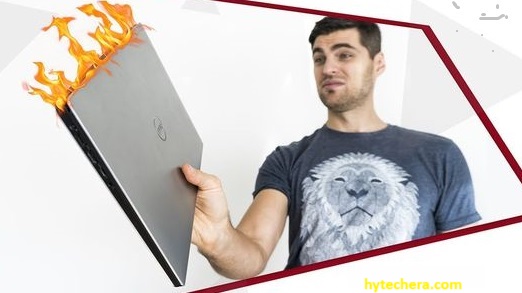
Also read –>> Common laptop problems and How to Fix them
Signs Your Laptop Is Overheating
Here are the most common signs that indicate your laptop is running hotter than normal.
- To perform the basic tasks your laptop takes longer time then usual.
- While using the laptop it automatically shutdown and fails to start even after few minutes.
- You can experience a freeze of your programs and applications.
- Its input devices like keyboard and mouse are will not responded properly.
- loud noise is coming from the device fans.
- The bottom part of the laptop becomes unusually hot even during light usage.
Tip: If your laptop shuts down repeatedly, stop using it immediately to avoid hardware damage.
Why Laptops Overheat and How to Fix It
- The main cause to overheat your device is obstruction of ventilation ports. When you use your laptop on smooth surfaces like sofa or bed, it prevents the proper air flow to the ports, that leads to overheating.
- Running large number of applications on the screen at once will increase the burden of system. Which cause system to overheat.
- When cooling pads became old, it became less efficient. Which cause system to overheat.
- Dust buildup inside the fan and heatsink is the number one reason laptops overheat over time.
- Background applications, antivirus scans, and browser tabs also increase CPU load and heat.
Intel: Intel overheating guide
Intel recommends monitoring CPU temperatures using Intel XTU or HWMonitor to identify heat spikes.
How to Fix Laptop Overheating: Best Solutions
Remove the dust to improve the airflow of your system:
- The first thing you need to check when your system is overheating, If there is any dust or debris was covered in air vents and cooling system. When it is covered with dust then you need the clean the fans carefully with smooth brush. while cleaning make sure that no damage should done to other components of the system. These process will reduce your over heating problem.
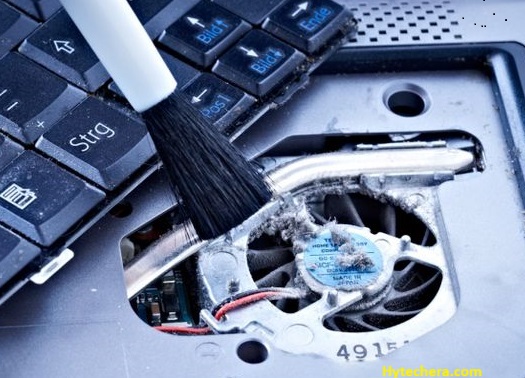
Use a can of compressed air to blow dust out of vents; avoid using a vacuum cleaner as it can damage internal parts.
Position Your Laptop on hard and flat surfaces :
- If you place your laptop on a smooth surfaces like bed or couch and start working, it results to the overheating of the system. Because it prevents the airflow. To prevent these from happening always try to place your laptop on flat and hard surfaces to make sure that air vents are not covered.
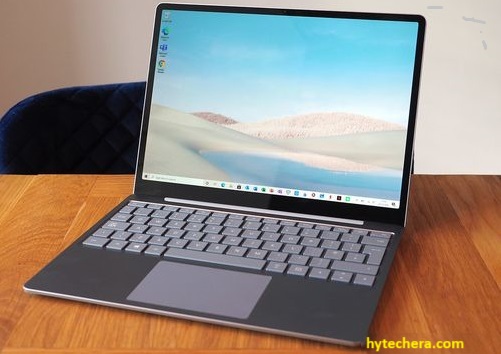
Using a wooden table or laptop stand significantly improves airflow.
Use cooling pads :
- This cooling pads helps you to cool your laptop components when they are overheating. Even though your system has inbuilt cooling pads , this pads helps your laptop to stay cool all the time. This pads help you to reduce the temperature of the components from bottom of the laptop. There are lot more pads available in the market , purchase the best pad that suits your laptop.
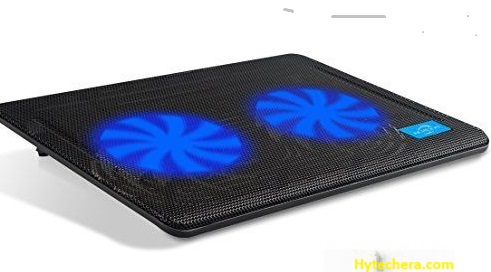
Choose a cooling pad with dual fans for gaming laptops and a single wide fan for regular laptops.
Wear and Tear :
- Laptop is a device which is made up of several components. These components cause the overheating problem if they are damaged. If your laptop is overheating make sure that all the components are good enough. Inspect the components like charger, adapter and other ports of computer, if they are damaged replace them to fix the issues.
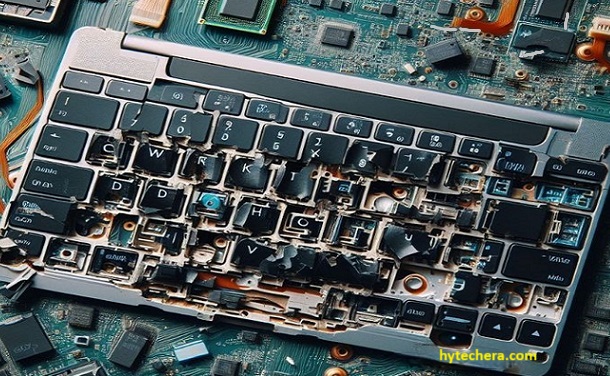
Loose charging ports or malfunctioning fans can also cause sudden overheating.
Thermal paste :
- Thermal paste is a heat conductivity material coated on CPU and GPU which helps the system to keep cool. When your laptop getting old or when you use the system in hot conditions thermal paste will get thicker and cause the system to overheat. To fix these issues you need to apply thermal paste again.
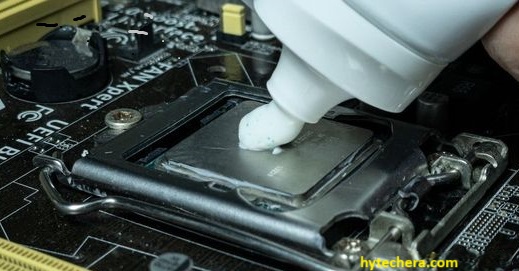
If you’re not experienced, avoid applying thermal paste yourself—take it to a professional technician.
Limit Background Apps & Heavy Programs
- Press Ctrl + Shift + Esc and check the Task Manager to see which apps are consuming high CPU usage.
- Close unnecessary apps, browser tabs, and startup programs to lower temperature instantly.
Update Drivers & BIOS
Manufacturers like HP, Dell, and Lenovo release updates that improve cooling performance and fan control.
Conclusion :
In this article i listed out the varies types of Overheating issues and their fixes. So once you identify the issues of overheating you can easily solve the problem and save your system from damage and you can increase the performance of your system by using these tips.
Dell: Laptop care and maintenance tips
By following these steps regularly, you can keep your laptop running cooler, faster, and safer.
If your laptop is still overheating after trying these fixes, comment below the model name and symptoms—I’ll help you troubleshoot.