Creating a professional YouTube thumbnail is one of the most important steps for growing your channel — even more important than the title in many cases. A thumbnail is the first impression, the first hook, and the deciding factor in whether someone will click your video or scroll past it. Many new YouTubers think thumbnails are “just a picture,” but in reality, thumbnails are part of YouTube’s CTR (Click-Through Rate) system, which directly affects your views and ranking. In this beginner-friendly guide, you will learn how to create YouTube thumbnails that look professional and get more clicks.
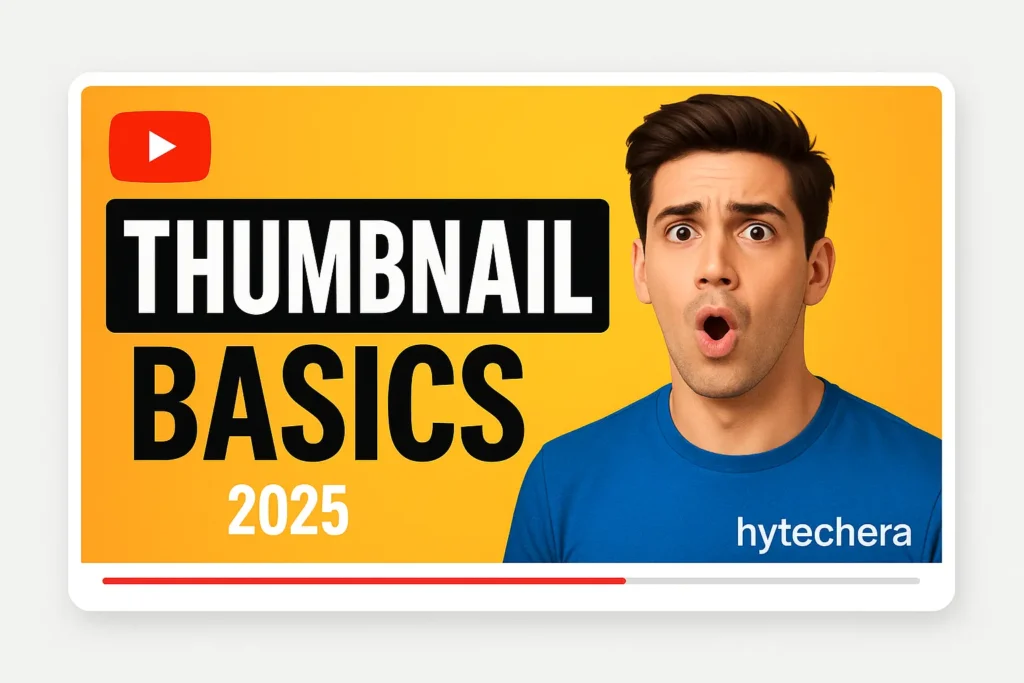
If you’re a beginner who wants to create thumbnails that look clean, professional, and high quality — without needing advanced design skills — this guide will help you understand everything from basics to design principles in a very simple and practical way.
1. What Exactly Is a YouTube Thumbnail?
A YouTube thumbnail is a small preview image that represents your video. It is the cover photo people see before clicking. Think of it like a book cover or a movie poster — if the cover is boring, people won’t open the book even if the content is amazing.
A thumbnail is your video’s visual advertisement, and its job is to:
- Grab attention
- Communicate what the video is about
- Create curiosity
- Stand out from other videos
- Make viewers want to click
Even if you create the best video in the world, it will struggle to get views without a strong thumbnail.
When I uploaded my first few videos, I used basic images without text or proper design. Even videos with great content barely crossed 50 views. But when I started designing intentional thumbnails with clean text and a better layout, my CTR increased and views doubled. That’s when I realized thumbnails are not optional — they are essential.
2. Why Thumbnails Matter So Much for Views & Growth
For YouTube, thumbnails matter because they directly affect CTR (Click-Through Rate) — the percentage of people who clicked your video after seeing it.
A good thumbnail can increase your CTR dramatically.
✔ High CTR = YouTube promotes your video
✔ Low CTR = Your video gets buried
In simple words:
Better thumbnail → More clicks → More watch time → More views → Faster growth.
Even YouTube officially says thumbnails significantly influence audience decisions.
From analyzing YouTubers like MrBeast, TechBurner, and Ali Abdaal, all successful channels have one thing in common:
they invest TIME in thumbnails.
3. Official YouTube Thumbnail Size & Technical Requirements
Before designing your thumbnail, you MUST follow YouTube’s official specifications.
However, many beginners end up using the wrong size, which end up with:
- Blurry thumbnails
- Cropped thumbnails
- Wrong aspect ratios
- Text cut off on mobile view
- Poor resolution
Here are the correct specs:
Size: 1280 x 720 pixels
Minimum width: 640 pixels
Aspect ratio: 16:9
Format: JPG, PNG
Max file size: 2MB
High contrast colors recommended
Safe margins for text (avoid edges)
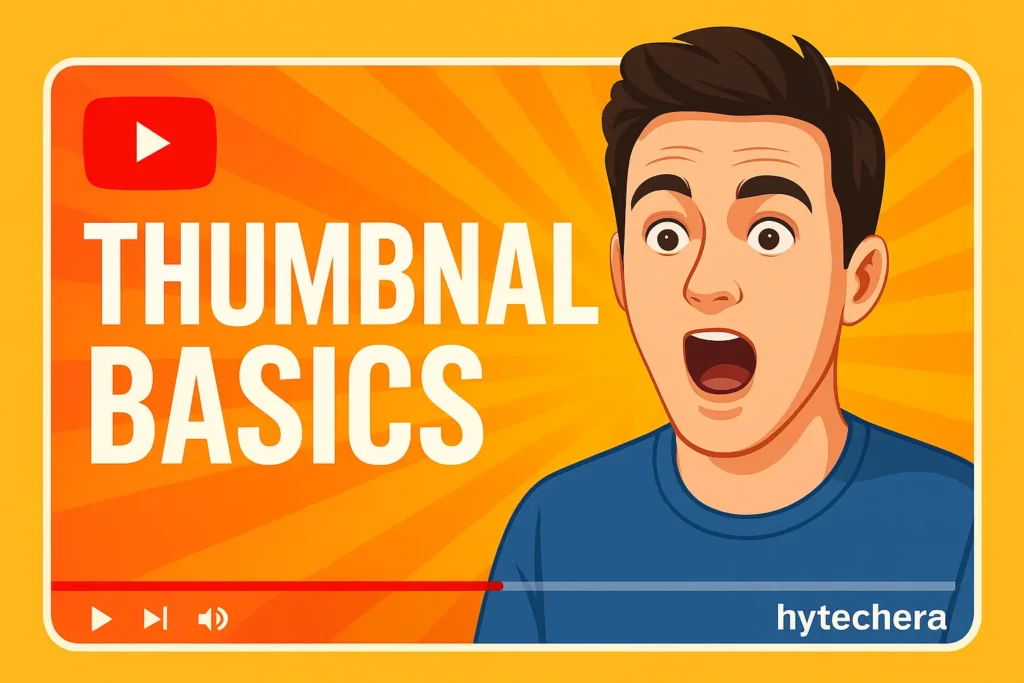
If you follow the official size, your thumbnail will look clear on:
- Mobile
- Tablet
- TV
- Desktop
One common mistake beginners make is designing thumbnails too small, leading to pixelation after upload.
4. Tools to Create Professional YouTube Thumbnails
The good news?
You do NOT need Photoshop knowledge or advanced design skills to make professional thumbnails.
Here are the best tools for beginners and intermediate creators:
A. Canva (Perfect for Beginners)
Most beginner YouTubers use Canva because:
- Free templates
- Easy to drag and drop
- Good fonts
- Ready-made thumbnail designs
- Photo background removal
- Mobile app available
Canva is best if you want ready-made, modern, YouTube-style designs quickly.
B. Adobe Express (Easy + Professional)
Adobe Express is another beginner-friendly tool with clean templates and powerful color correction.
It’s slightly more professional than Canva but still very easy.
C. Photoshop (For Professional Editors)
Harder to learn, but gives full control over:
- Shadows
- Highlights
- Background blur
- Professional effects
Used by advanced editors and big YouTubers.
D. Figma (For Branding Consistency)
Perfect for creators who want:
- Consistent brand style
- Grid-based designs
- Sharper layouts
Great for tech channels or tutorial channels.
E. Mobile Apps (If You Want to Create Thumbnails on Phone)
Many creators make thumbnails FULLY on mobile using:
- PicsArt
- Snapseed
- PixelLab
- Background Eraser
- Thumbnail Maker App
These apps help you edit quickly even if you’re traveling.
I tried making thumbnails on both PC and mobile. Surprisingly, my best-performing thumbnail (highest CTR) was actually made on my phone using PicsArt + Snapseed. Mobile editing is more powerful than people think.
Creating professional thumbnails is not about choosing random pictures or adding fancy text. A good thumbnail is a well-thought-out design that guides the viewer’s eyes to the right place, creates curiosity, and communicates the video’s main promise in one quick glance.
5.Step-by-Step Guide: How to Create YouTube Thumbnails
Before learning how to create YouTube thumbnails step by step, it’s important to understand what makes a thumbnail stand out.
Many beginners think thumbnail design is difficult, but once you follow a simple structure, the process becomes easy and repeatable.
Below is a beginner-friendly process you can apply using Canva, Adobe Express, PicsArt, Figma, or Photoshop.
Step 1: Choose the Right Image (Face, Object, or Scene)
Your thumbnail image must immediately tell viewers what the video is about.
Good image options:
- A close-up of your face
- A picture showing emotion (shocked, excited, confused)
- A clear image of the product you’re reviewing
- A symbolic image (warning sign, question mark, arrow, etc.)
Pro Tip:
YouTube recommends close-up shots of faces because viewers naturally react to human expressions.
✔ Emotional expressions = more clicks
Studies show thumbnails with emotions like:
- Shock
- Excitement
- Curiosity
- Laughter
perform significantly better.
My own thumbnails with a close-up facial reaction (surprised or confused) usually got 20–30% more CTR than ones without a face.
Step 2: Remove Background (For a Cleaner Look)
A messy or busy background can confuse the viewer. Removing the background makes your subject stand out.
Every tool offers background removal:
- Canva: “Background Remover”
- PicsArt: Cutout
- Photoshop: Select Subject
- Snapseed: Tools → Brush → Erase
After removing the background, place your subject on a simple, bold, contrast-rich background.
Step 3: Add Big, Bold, Readable Text
Text is crucial — but beginners make the mistake of adding too much.
Use 3–5 words max, like:
- “Best Budget Phone”
- “Do This First!”
- “Don’t Buy Before Watching!”
- “Camera Test 2025”
- “Easy Tutorial”
Why short text?
Because 70% of YouTube traffic is from mobile, where text needs to be:
✔ Large
✔ Bold
✔ High contrast
✔ Easy to read in one second
Use fonts like:
- Anton
- Bebas Neue
- League Spartan
- Montserrat
- Impact (classic YouTube style)
Step 4: Add Visual Elements (Arrows, Circles, Icons)
These guide the viewer’s eye and highlight important elements.
Common elements:
- Arrows pointing at the subject
- Circles highlighting features
- Shadows behind text
- Gradient overlays
- Stroke (outline) around face for pop-out effect
Don’t overuse them — keep it clean and purposeful.
Step 5: Apply Color Psychology (Super Important)
Color affects emotion and clicking behavior.
Here is the psychology YouTubers use:
| Color | Meaning | Best For |
| ⚫ Black | Premium / Luxury | Tech reviews, serious videos |
| 🔴 Red | Urgency / Excitement | Reactions, challenges |
| 🟡 Yellow | Happiness / Attention | Tutorials, friendly content |
| 🔵 Blue | Trust / Knowledge | Tech, how-to guides |
| 🟣 Purple | Creativity | Design, apps |
| 🟢 Green | Money / Growth | Finance videos |
Using the right color theme improves CTR significantly.
Step 6: Add Brand Elements (Consistency = Growth)
Branding makes your channel memorable.
Add:
- Logo (small)
- Consistent color palette
- Same font family
- Similar layout structure
Viewers should recognize your thumbnail style instantly.
Step 7: Export in High Resolution
Always export in:
- 1280 × 720 px
- JPG or PNG
- 2MB or less
- High quality (not compressed)
This keeps thumbnails crisp and clean on all devices.
6. Design Principles Every Thumbnail Must Follow
Additionally, these principles are followed by all big YouTubers — MrBeast, Ali Abdaal, TechBurner, Marques Brownlee, Dhruv Rathee, and more. Knowing how to create YouTube thumbnails becomes easier when you understand basic design principles like contrast and focus.
✔ 1. Rule of Thirds
Place your important elements (face, object, text) along the grid lines. This creates a balanced image.
✔ 2. Contrast (Dark vs Light)
Example:
Dark background + bright text
Bright background + dark subject
This makes the thumbnail readable instantly.
✔ 3. Focus on One Idea
Don’t try to communicate everything.
One thumbnail → one clear message.
✔ 4. Use High-Quality Photos
Avoid blurry screenshots.
Use crisp, sharp photos with good lighting.
✔ 5. Negative Space
Give room around the subject.
Crowded thumbnails look unprofessional.
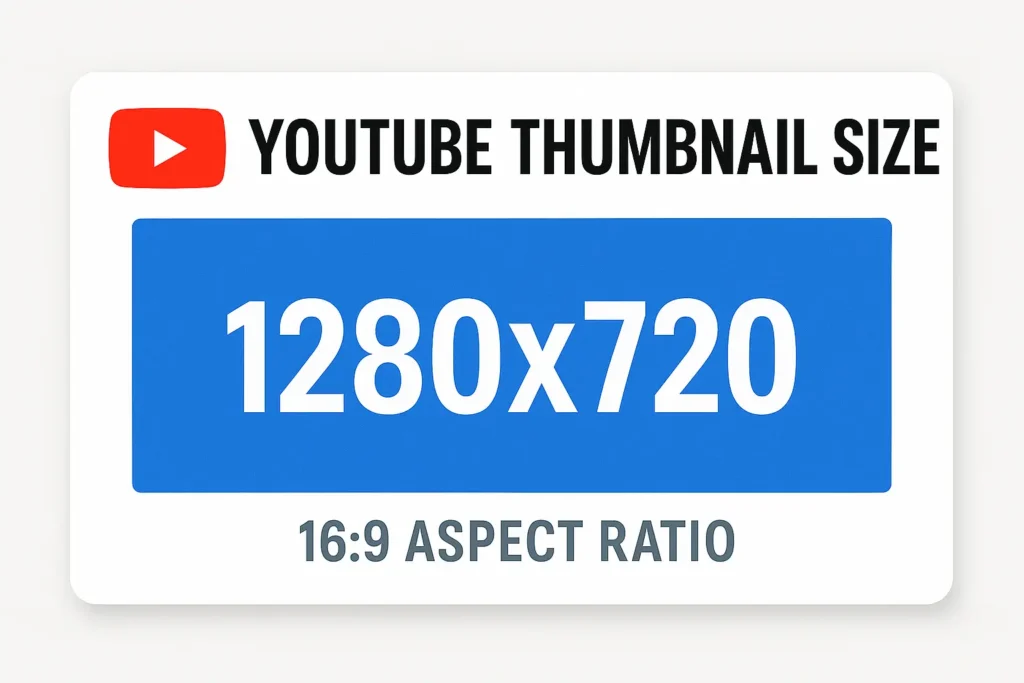
7. Popular Thumbnail Types (With Examples)
For example, reaction thumbnails perform extremely well in entertainment niches. Different types of videos require different thumbnail styles.
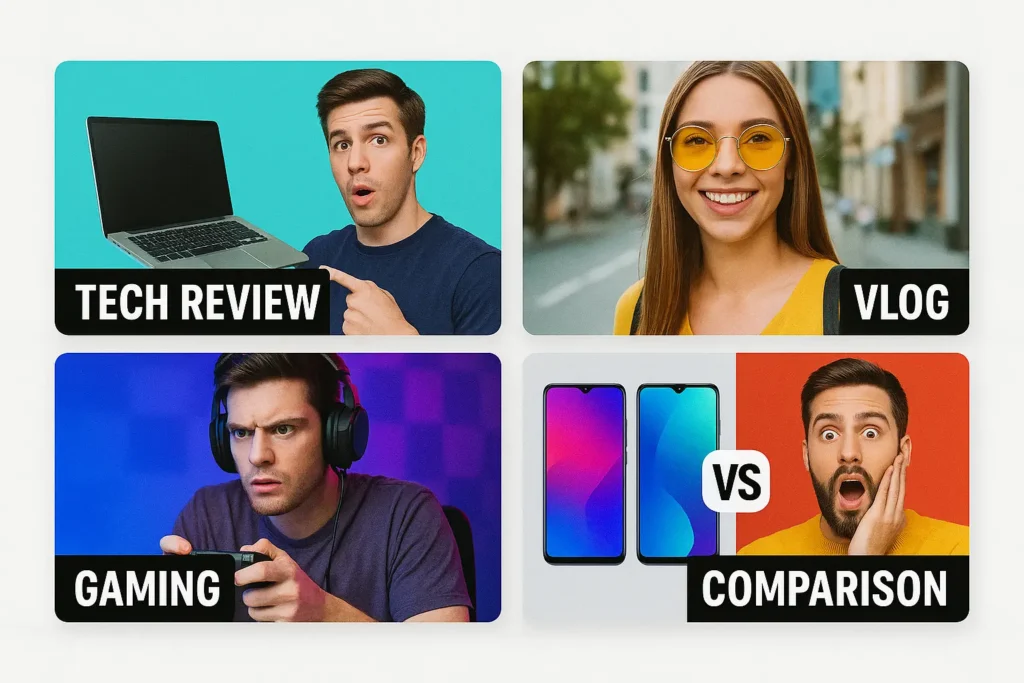
A. Reaction Thumbnails
- Close-up face
- Big emotions
- Bright colors
Perfect for entertainment videos.
B. Tech Review Thumbnails
- Minimal
- Product in the center
- Clean fonts
Used by MKBHD, TechBurner.
C. Vlog Thumbnails
- Natural lighting
- Fun, colorful
- Real moments
Best for lifestyle channels.
D. Tutorial Thumbnails
- Step indicator (1-2-3)
- Clear subject
- Bold text
Used heavily for “how to” videos.
E. Comparison Thumbnails
- Two products side by side
- vs. Text
- Contrast background
8. Common Beginner Mistakes (Avoid These)
Many beginners ruin their thumbnails with these mistakes:
- Too much text
- Wrong colors
- Cluttered background
- Low-quality images
- Small fonts
- Bad cropping
- No emotional expression
- Overusing stickers/effects
Avoiding these will instantly improve your CTR.
Also read –>> How to Start a Faceless YouTube Channel in 2025 (Step-by-Step Guide)
9. How to Make YouTube Thumbnails Using Only Your Phone
You don’t need a laptop or Photoshop to make high-quality thumbnails. Many successful YouTubers actually edit their thumbnails on their phone because it’s faster and more convenient. If you truly want to learn how to create YouTube thumbnails that get higher CTR, these pro tips will help you.
Here’s a simple mobile workflow anyone can use:
Step 1: Choose an Editing App
Best free apps:
- Snapseed
- PicsArt
- PixelLab
- Lightroom Mobile
- Canva App
These apps offer background removal, text effects, shadow, selective color, and high-quality export.
Step 2: Capture a Clean Photo
Use your phone’s front camera or rear camera with:
- Natural lighting (near window)
- Clean background
- Good framing
- Expression-based shots (happy/shocked/serious)
A natural, expressive face looks much better than a forced pose.
Some of my highest CTR thumbnails came from simple mobile selfies taken near a window — clean lighting makes a huge difference.
Step 3: Remove Background and Add Subject
Use PicsArt or Canva’s “Remove Background” option to isolate your face or product.
Add your image on a simple, bold background.
Step 4: Add Big Bold Text (3–5 Words)
Make sure the text is:
✔ Centered or left-aligned
✔ Large and readable
✔ Contrasting with the background
✔ Clear in mobile preview
Examples:
- “Don’t Do This!”
- “Easy Fix”
- “Best Budget Phone”
Step 5: Add Depth & Shadows
Use shadows behind your subject to make it “pop.”
In Snapseed:
- Tools → Tune Image → Contrast
- Tools → Details → Structure
- Tools → Lens Blur
These tools add depth and professional quality.
Step 6: Export in HD
Always export in:
1280 × 720 px
High-quality JPG
No cropping
This ensures your thumbnail stays sharp.
10. Pro Tips to Increase Click-Through Rate (CTR)
CTR is the key to growing your channel. Here are techniques big YouTubers use:
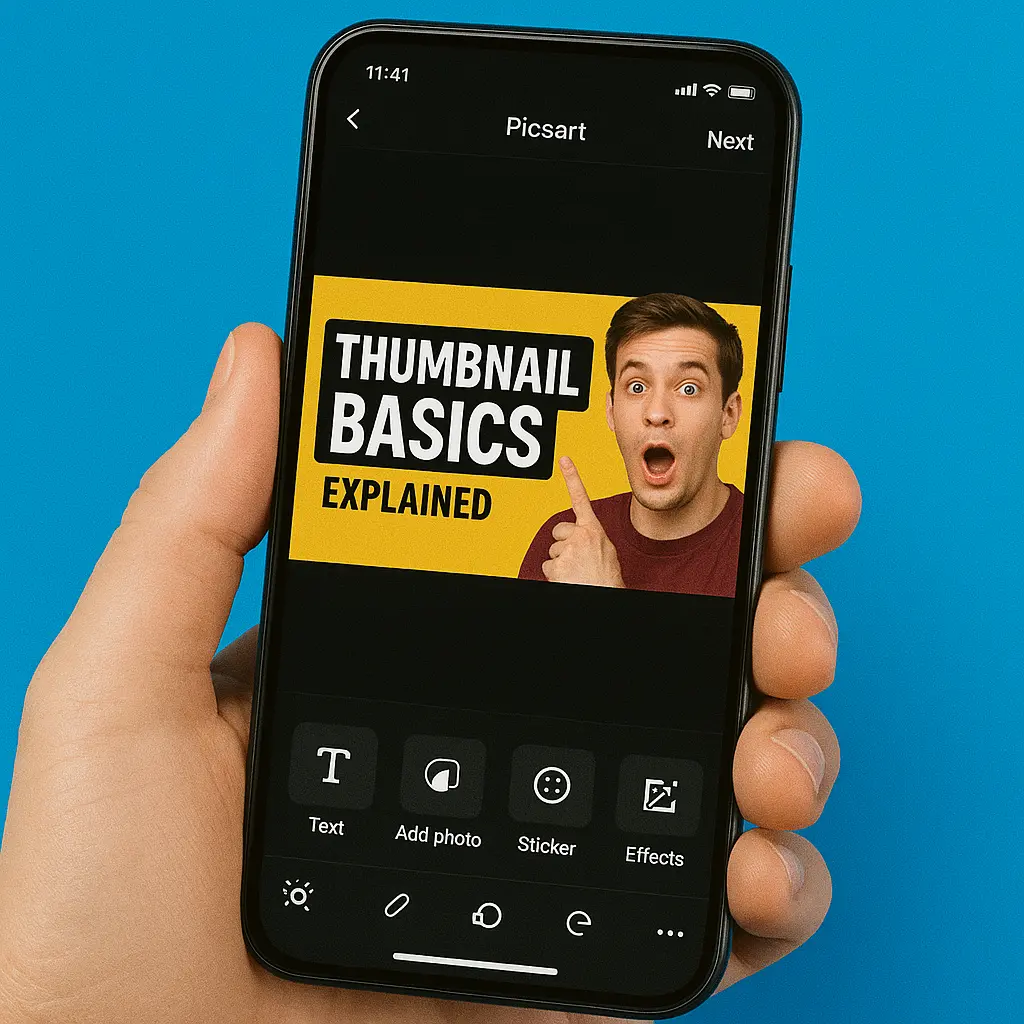
1. Use Close-Up Faces with Emotions
People connect emotionally with faces.
Good emotions:
- Shock
- Surprise
- Excitement
- Confusion
- Curiosity
Even simple expressions increase CTR.
2. Add Contrast Colors
Use opposite colors in the color wheel:
- Yellow + Black
- Blue + Orange
- White + Red
- Purple + Yellow
These combinations draw attention instantly.
3. Use Arrows & Highlights Sparingly
One arrow pointing to the key part is enough.
Don’t clutter with too many icons.
4. Maintain Brand Consistency
Use the same fonts, color palette, and layout style in every thumbnail.
Your channel becomes visually recognizable.
5. Create Curiosity, Not Clickbait
Curiosity triggers clicks.
Clickbait causes drops in watch time.
Example:
❌ Don’t say: “MIND BLOWING HACKS!!!”
✔ Better: “This Trick Actually Works…”
6. Test Different Styles Every 10 Videos
You won’t know what works until you try different styles like:
- Minimalist
- Emotional
- Text-heavy
- Text-light
- Product-focused
- Reaction-focused
YouTube viewers respond differently based on niche.
11. A/B Testing Your Thumbnails (Advanced Technique for Growth)
A/B testing helps you find which thumbnail gets more clicks.
✔ YouTube has an official A/B testing feature called “Experiment” inside YouTube Studio (2024+ update).
Here’s how to use it:
Step 1: Upload Two Thumbnails
Create two variations with small differences:
- Text size
- Background color
- Expression
- Layout
Step 2: Run an Experiment
Inside YouTube Studio:
- Go to “Content”
- Select the video
- Click “Experiments”
- Add Thumbnail A & B
YouTube automatically tests both.
Step 3: Check CTR Results
After 7–14 days, YouTube will tell you:
- Which thumbnail performed better
- Which got higher CTR
- Which got more watch time
Use the winner permanently.
This is EXACTLY how professional YouTubers optimize their content.
12. My Personal Experience Creating Thumbnails
From my experience working with YouTube content and analyzing hundreds of thumbnails:
- Simple designs always beat complex ones
- Faces get more clicks than objects
- Short text works better than long text
- Slow backgrounds reduce clarity
- Bright colors attract attention
- Clean layout looks more professional
- A/B testing reveals unexpected results
One of my biggest learnings was this:
A thumbnail doesn’t need to be beautiful — it needs to be clear.
Clarity beats beauty every time.
13. Conclusion
Good thumbnails can completely change the performance of your YouTube channel. Even if you are a beginner, you can create professional thumbnails using simple tools, clean design, strong expressions, bold text, and consistent branding. Remember, a thumbnail is not just a picture — it is your video’s first impression, marketing tool, and growth engine. Once you understand how to create YouTube thumbnails consistently, your channel will naturally attract more views and clicks.
If you follow the steps in this guide, you will see improvement in CTR, engagement, and overall video performance. Keep experimenting, stay consistent, and your thumbnails will naturally get better over time.
FAQs-Create Professional Thumbnails for YouTube
- Do I need Photoshop to make thumbnails?
No. Canva, PicsArt, and Snapseed are enough for beginners.
- What is the correct YouTube thumbnail size?
1280 × 720 pixels (16:9 ratio), under 2MB.
- Is text necessary on thumbnails?
Not always. But 3–5 words increase CTR significantly.
- Why do faces work better?
People connect emotionally with expressions — leading to more clicks.
- Can I use stock images?
Yes, but make sure they match your video content.
- What is A/B testing?
It’s a method to test two thumbnails and see which one performs better.
- Why are my thumbnails blurry?
Because the image is too small or exported incorrectly.
Always use 1280×720 px.