Artificial intelligence is redefining creativity, and Google has entered the AI image-generation race with a powerful new tool called Google ImageFX.
This free text-to-image generator allows you to generate stunning visual effects and digital art simply by explaining your concept.
ImageFX, driven by Google’s Imagen 2 model and developed at the AI Test Kitchen, generates high-quality, realistic graphics faster than most other solutions in its category.
Whether you’re a content producer, designer, or filmmaker, ImageFX offers broad editing capabilities, emotive prompt suggestions, and an easy-to-use UI that lets you turn ideas into stunning graphics in minutes.
What’s the best part? You don’t need to be a brilliant artist; ImageFX does the heavy lifting with AI precision.
This post will show you how to create your first VFX image with Google ImageFX, as well as expert tips for generating cinematic, professional-quality effects.
When I first tested ImageFX for my blog thumbnails, I was surprised how accurate the visuals were even with simple prompts — that’s when I realised beginners can also create pro-level images easily.
Now let’s walk through the steps to generate your first VFX using ImageFX.
ImageFX offered a wide range of features for manipulating digital images. But for now Google entered into the AI image generator market with its new tool. The tool-Google ImageFX allows users to create images from text descriptions, using Google’s advanced text-to-image model. It was known for its user-friendly interface and powerful capabilities. With this tool users can handle complex and detailed prompts with ease.
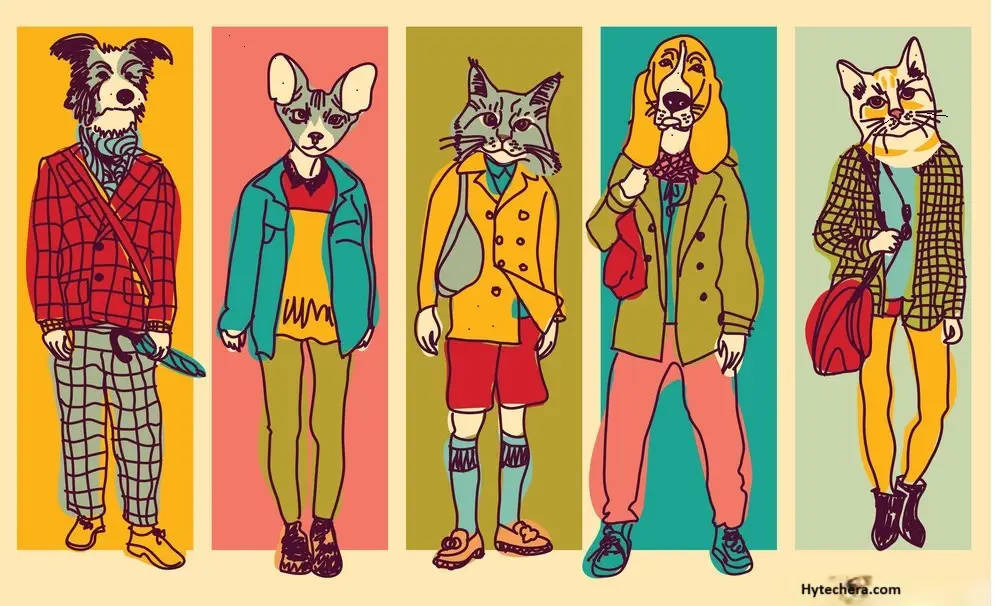
You can start generate your image by using these steps given below. It takes just a few minutes to generate google free ImageFx .
Also read —>> Step By Step Guidance – How to Create Ghibli-Style Images
Since this tool is built on Google’s Imagen 2 model, it handles realistic textures, lighting, and fine details exceptionally well.
Step 1: Go the Google ImageFX website :
- Go to browser and type AITestKitchen, then browser will navigate you to the official website. After that choose Google ImageFX from the dropdown which is located in the top left corner.
- Where you can start your journey to create your own VFX with googles free AI Image.
Bookmark the ImageFX page in your browser — Google sometimes relocates tools inside the AI Test Kitchen menu.
2: sign in by using your Google Account.
- Next step to create a ImageFX is to create a google account or by login using your existing google account. The main purpose to create a account is to securely stored your creations and retrievable.
- Once you log in, it provides you a guide tour about ImageFX. Explaining what it is. If you understand the information then click Got it.
- Then you will land at ImageFX AI image generator.
- At present, ImageFX is only available at some regions only like US, Australia, and New Zealand.
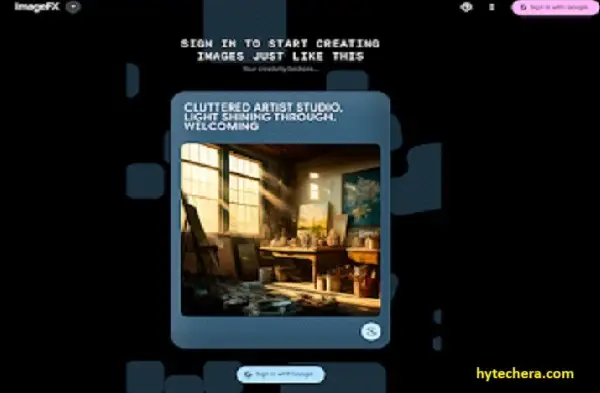
Google recommends signing in because your generated images and prompt history are stored securely under your account.
3: Enter a prompt that you wish to create.
- while you enter a prompt, it is important to describe the every detail of the picture that what you vision. your vision could be a painting, photo, or illustration.
- while you type out a prompt it in the text box, describe every detail of your vision. Where your prompt turns into a great picture of your vision, so that it gives you an accurate ImageFx.
- Click generate button when your ready and watch your image on the screen.
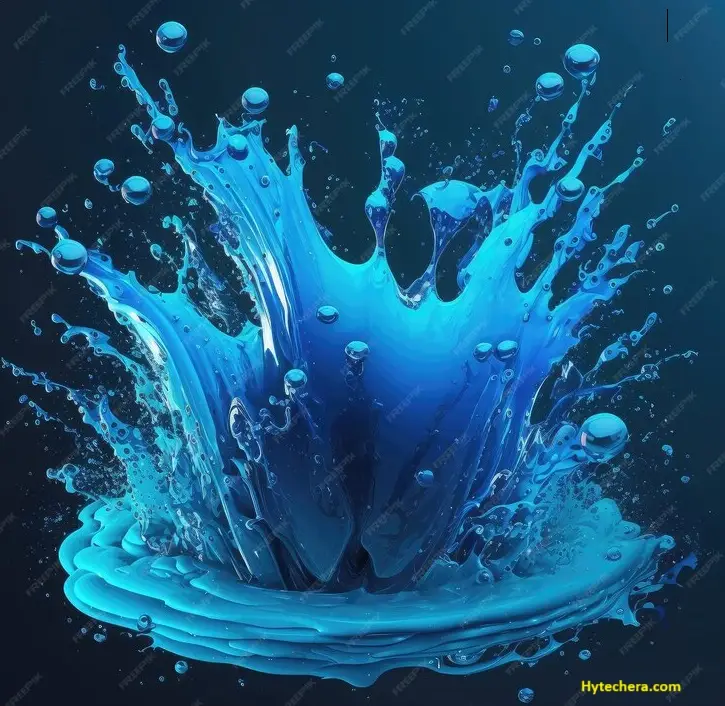
Example prompt: “Cinematic wide shot of a dragon flying over snowy mountains, hyper-realistic lighting, 8K detail.”
Example beginner prompt: “Cute cat wearing a blue hoodie, soft lighting, digital painting style.”
4: Use Expressive Chips :
- After every generation, you can see some words are highlighted, these are called an Expressive Chips.
- Once you click on the chips it will suggest you the best suitable words that fit for your image. By using these chips you can create more variation on your original image.
- You can also find the different collections of words below the text box, like handmade, realistic, cinematic and wide shot etc. You can use these words to generate an image, by learning how to write a prompt, even if you do not know anything about art.
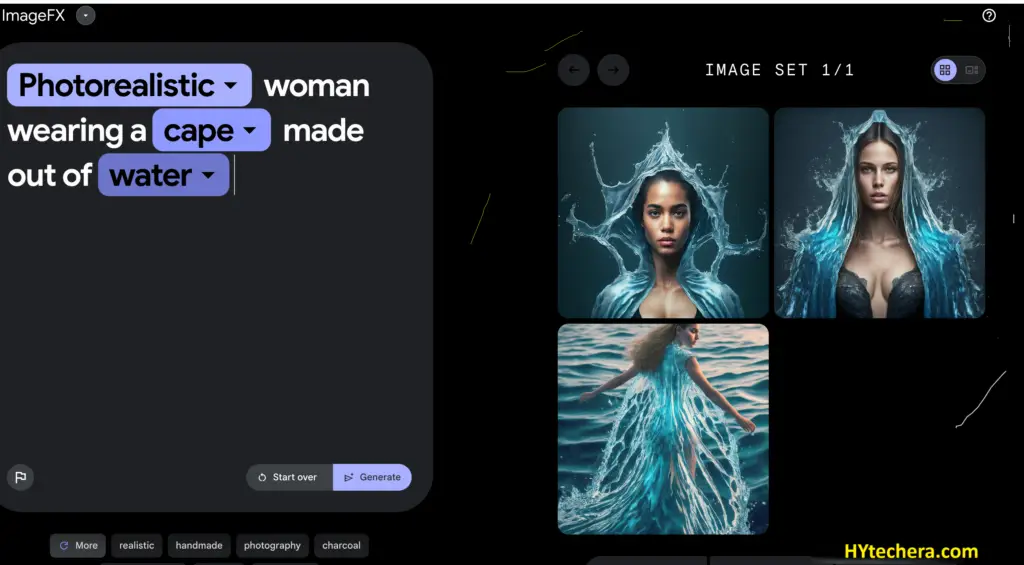
I personally use chips like cinematic, soft lighting, and studio quality to instantly improve my images without rewriting the entire prompt.
5: Download the images that you generate :
- It can generate four unique images by using prompt that you given.
- When the images were generated, select the best image that matches your vision.
- This images are downloadable, by clicking the download option given below.
- You can use these images on your profiles or in your projects. You can also share them with you friends.
Many users download the first image they see — but always check all four variations; sometimes the last one looks more professional.
Bonus Tips for Better Results with Google ImageFX
Follow these professional recommendations to get the best results:
Use detailed and exact prompts (such as “Cinematic wide shot of a futuristic city at sunset”).
- Include stylistic terms like realistic, anime, cinematic lighting, and studio quality.
- Experiment with Expressive Chips to enhance your image automatically.
- Try different aspect ratios and re-generate to provide variety.
- Save your favorite prompts so you may easily reuse them later.
Conclusion:
Among the several AI image-generation technologies in 2025, Google ImageFX stands out for its ease of use, expressive features, and great output quality.
It offers a creative platform for everyone, from artists to beginners, to try out new ideas and bring their dreams to life.
Most AI artists recommend experimenting with 2–3 versions of the same prompt to discover better angles, lighting, or composition.
By following these simple steps to use Google ImageFX, you can enter a new world of AI-powered VFX creation that is rapid, free, and surprisingly fun.