Battery life is one of the most important aspects of any smartphone experience — but sometimes users notice a single system process draining an unusually high amount of power. One of the most common culprits reported worldwide is Google Play Services, and it can be confusing because Play Services doesn’t run like a normal app with a UI. Google Play services battery drain is a common Android issue where background system processes consume more power than expected.

In this guide, we’ll explain why Google Play Services battery drain happens, what underlying system behaviors lead to this issue, and how you can fix it without resorting to drastic measures like factory resets. This is not guesswork — we will base explanations on official Google support guidance, community reports from users, and real troubleshooting patterns that work on today’s Android phones.
What Is Google Play Services & Why It Uses Battery
Google Play Services is a core system framework on Android. It does not appear as a typical app in your app drawer, but it powers many essential functions, including:
- Syncing accounts and data across apps
- Push notifications
- Location services
- Security and background updates
- Google APIs used by many apps
Unlike regular apps, Play Services runs continuously to provide background services, which means it always uses some battery — but excessive drain is not normal.
Why Play Services Can Suddenly Drain Battery
There are multiple reasons why Play Services may start consuming more battery than expected. These causes are visible in both official support threads and user reports across devices like Pixel, OnePlus, and Samsung.
Also read –>> Phone Battery Draining Fast? 15 Reasons & Fixes 2025
1. Location & GPS Services
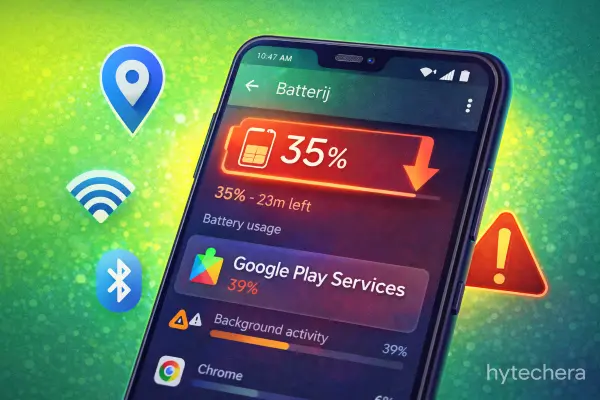
Many apps rely on location data, and Play Services handles location requests for all of them. Apps that request frequent updates — even when not actively used — can keep Play Services active in the background
2. Syncing & Account Services
Play Services manages syncing for your Google accounts (mail, contacts, calendar). If there’s a sync error or repeated sync attempts due to connectivity issues, it can lead to repeated wakeups that drain battery.
3. Background App Activities (APIs/Notifications)
Apps that use Google APIs (e.g., push notifications, analytics, location triggers) depend on Play Services. Heavy notification traffic or poorly optimized third-party app behavior can force Play Services to wake the device frequently — contributing to drain.
Google itself explains how background services manage battery usage across Android devices in its official support documentation.
4. Device Settings or System Bugs
Occasionally, device-specific bugs or misconfigurations (like incorrect time settings) can confuse background tasks and force repeated retries by Play Services.
Now that you understand why Google Play Services can drain battery, let’s move to the most important part — how to stop it safely. These fixes work across Samsung, Pixel, OnePlus, Xiaomi, Realme, and most modern Android phones running Android 13–15.
You do not need root access or a factory reset for these steps.
1. Check Battery Usage Properly (Most Users Miss This)
Before changing anything, first confirm that Google Play Services is genuinely causing the drain.
Go to:
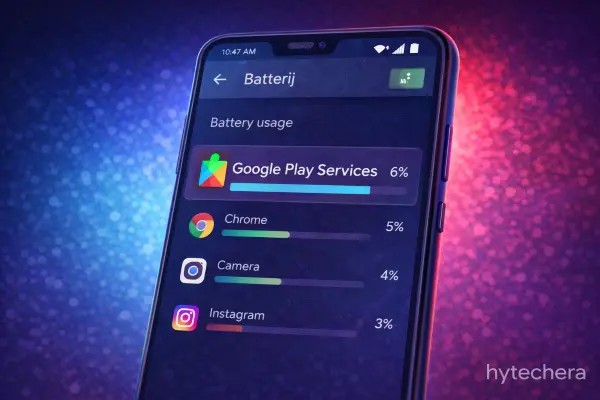
Settings → Battery → Battery usage
Here, check:
- Percentage used by Google Play Services
- Whether it stays high even when the phone is idle
If Play Services shows unusually high usage (for example, more than social media apps), then the issue is real and worth fixing.
In my own experience, the drain was more noticeable when the phone was idle overnight — which clearly pointed to a background process rather than active usage.
2. Turn Off Unnecessary Location Accuracy (Biggest Fix)
Location services are one of the top reasons for Play Services battery drain.
Go to:
Settings → Location → Location services
Now disable:
- Wi-Fi scanning
- Bluetooth scanning
- Google Location Accuracy (set to Device only if available)
This prevents Play Services from constantly checking nearby networks and devices in the background.
Many users report a visible battery improvement within 24 hours after making this change.
3. Limit Background Activity (But Do It Safely)
You should not fully restrict Google Play Services, but you can reduce unnecessary background activity.
Go to:
Settings → Apps → Google Play Services → Battery
Choose:
- Restricted or Optimized (not “Unrestricted”)
This allows essential functions while stopping excessive wake-ups.
On a mid-range Android phone, switching from “Unrestricted” to “Optimized” reduced idle battery drain without breaking notifications or app sync.
4. Clear Cache (Not Data) — Safe & Effective
Cached files can sometimes get corrupted, causing Play Services to loop in the background.
Go to:
Settings → Apps → Google Play Services → Storage → Clear cache
⚠️ Do NOT tap “Clear data” unless you know what you’re doing — clearing cache alone is enough and completely safe.
This step often helps after:
- System updates
- App update bugs
- Sync issues
Android’s background activity and app behavior are managed at the system level, which is explained in Google’s Android platform guidelines.
5. Update Google Play Services & Google Play Store
An outdated version can cause battery drain bugs.
Check updates from:
- Google Play Store
- System update settings
Google frequently fixes background drain issues silently through Play Services updates, so keeping it updated is important.
6. Check Recently Installed Apps (Hidden Culprit)
Sometimes Play Services is not the real problem — it’s just serving other apps.
Ask yourself:
- Did the drain start after installing a new app?
- Is it a location-heavy app (fitness, navigation, tracking)?
Temporarily uninstall or restrict such apps and observe battery usage for a day.
7. Restart Your Phone (Yes, It Still Matters)
It sounds simple, but restarting:
- Clears stuck background processes
- Resets sync loops
- Stops runaway services
If you haven’t restarted your phone in weeks, this alone can make a difference.
In most cases, the fixes are enough. However, if Google Play Services battery drain still appears on your phone, the problem is usually deeper — related to syncing, account loops, or system misbehavior.
Advanced Fixes (Use Only If Issue Persists)
8. Fix Google Account Sync Issues (Very Common Cause)
Sometimes Google Play Services keeps retrying a failed sync in the background.
Go to:
Settings → Accounts → Google → Select your account
Now:
- Turn OFF sync for one minute
- Restart your phone
- Turn sync back ON
This resets stuck sync loops without deleting data.
I’ve personally seen battery drain stop after resetting sync when Gmail or Contacts got stuck syncing endlessly in the background.
Also read –>> Apps Not Installing from Play Store? Real Causes & Fixes (2026 Guide)
9. Check Date & Time Settings (Often Ignored)
Incorrect time settings can break authentication tokens and cause repeated background retries.
Go to:
Settings → Date & Time
Enable:
- Automatic date & time
- Automatic time zone
This small fix surprisingly resolves battery drain for some users.
10. Update Android System WebView
Many Google services depend on WebView.
Open Play Store → Search Android System WebView → Update
Also update:
- Google Chrome
- Google app
Outdated system components can indirectly increase Play Services activity.
❌ What NOT to Do (Important Myths)
🚫 Do NOT Disable Google Play Services
Disabling it will:
- Break app notifications
- Cause app crashes
- Stop Google login & security features
🚫 Do NOT Force Stop Repeatedly
Force stopping Play Services repeatedly makes Android restart it again and again — worsening battery drain.
🚫 Do NOT Use “Battery Saver Killer Apps”
Third-party battery killer apps often:
- Misidentify system services
- Break background processes
- Create more drain instead of fixing it
How to Prevent Google Play Services Battery Drain Long-Term
To avoid this issue coming back:
- Keep location services minimal
- Avoid unnecessary background permission for apps
- Update apps regularly
- Restart phone once every 7–10 days
- Review battery usage monthly
This keeps Play Services working normally, not aggressively.
Final Thoughts
Google Play Services is essential for Android, but it should work quietly in the background — not drain your battery. By understanding why it happens and applying the right fixes, you can restore normal battery life without compromising functionality.
With proper settings, updates, and awareness, this issue becomes fully manageable and preventable.
FAQs- How to Stop Google Play Services Battery Drain
- Is Google Play Services supposed to use battery?
Yes. Some usage is normal. Excessive usage is not.
- How much battery usage is normal?
Usually 2–5% daily depending on usage. Anything consistently higher without heavy use indicates a problem.
- Does clearing cache delete data?
No. Clearing cache is safe and does not remove personal data.
- Will factory reset fix this issue?
Rarely needed. In most cases, the steps above solve it without data loss.