Seeing “Wi-Fi Connected but No Internet” on your Android phone is one of the most frustrating issues. Your device shows full Wi-Fi bars, but nothing loads — no YouTube, no Instagram, no Chrome. This guide will help you fix Wi-Fi connected but no internet on Android in 2025 using simple step-by-step methods.
This problem is extremely common in 2025 due to:
- Router glitches
- DNS issues
- IP conflicts
- Network restrictions
- Software bugs
- ISP-side outages
The good news?
Most of these problems can be fixed at home in a few simple steps.
This happened to me multiple times, especially when using public Wi-Fi in airports. Even though the phone showed “Connected,” the internet wouldn’t work until I refreshed DNS and renewed Wi-Fi settings. Many Android users face the same issue daily.
Let’s fix it step by step.
1. Confirm the Issue: Is It Only Your Phone or the Entire Wi-Fi?
Before you start fixing anything, you must know whether:
- Only your Android phone has no internet
or - The Wi-Fi network itself is down

Do this first:
- Test the same Wi-Fi on another device (laptop / another phone)
- Try loading different websites, not just one
- Toggle airplane mode ON → OFF
If other devices also have no internet:
The problem is with Wi-Fi router or ISP, not your phone.
If ONLY your Android shows no internet:
Continue with the fixes below.
2. Restart Your Router & Android Phone (Fixes 60% Cases)
This is the simplest and most successful fix.
Steps:
- Turn OFF the router
- Wait 10 seconds
- Turn it ON
- Restart your Android phone
Why it works:
- Clears network errors
- Resets IP assignment
- Fixes temporary DNS failures
This alone usually restores full internet.
3. Forget the Wi-Fi Network & Reconnect
Sometimes your Android stores old network settings that cause conflicts.
Steps:
- Open Settings
- Go to Network & Internet > Wi-Fi
- Tap the Wi-Fi network name
- Tap Forget
- Reconnect by entering the password again
This resets the connection and fixes authentication glitches.
4. Check If “No Internet” Is Caused by Slow or Blocked Wi-Fi
Many routers show “Connected” even when internet is extremely slow or temporarily offline.
Try:
- Loading different apps
- Doing a Speedtest
- Switching between 2.4 GHz and 5 GHz bands
Common router problems:
- Too many devices connected
- Router overheating
- Weak signal in certain rooms
If the issue is only with YOUR phone, continue reading.
5. Disable VPN or Proxy
VPN apps can break the internet connection while keeping Wi-Fi “Connected.”
Turn off:
- VPN
- DNS changer apps
- Ad-blocker VPN modes
- Firewalls
- Private DNS apps
When I used a free VPN for streaming, my Android showed Wi-Fi connected but apps kept failing. Disabling VPN immediately fixed the issue.
For security-related Wi-Fi problems, Avast provides an excellent technical explanation.
6. Check Your Router’s Admin Page (Blocked Device Issue)
Some routers automatically block devices when they detect unusual activity.
If your router uses:
- MAC filtering
- Parental controls
- Access restrictions
Your phone may show Wi-Fi connected but blocked from internet access.
Login to admin page:
Type in browser:
- 192.168.0.1
- 192.168.1.1
Then check:
- Blocked device list
- MAC filtering
- Active clients list
If your device is blocked → unblock it.
7. Renew IP Address (Fixes IP Conflict Issues)
Many times your phone connects to Wi-Fi, but the network gives your device an invalid or duplicate IP address, which results in “Connected, No Internet.”
How to renew IP:
- Open Settings
- Go to Wi-Fi
- Long-press your Wi-Fi name
- Tap Modify Network
- Go to Advanced Options
- Change IP settings → DHCP
- Save
If you already use DHCP, toggle to Static → Save → switch back to DHCP.
Why this works
It forces your Android to request a fresh IP address from the router, fixing IP conflicts that stop internet access.
8. Change DNS to Google DNS
Android’s automatic DNS sometimes fails even when Wi-Fi works.
Changing it fixes most “Connected but No Internet” problems.
Many users report this issue when trying to fix Wi-Fi connected but no internet on Android 2025 devices using default DNS settings.
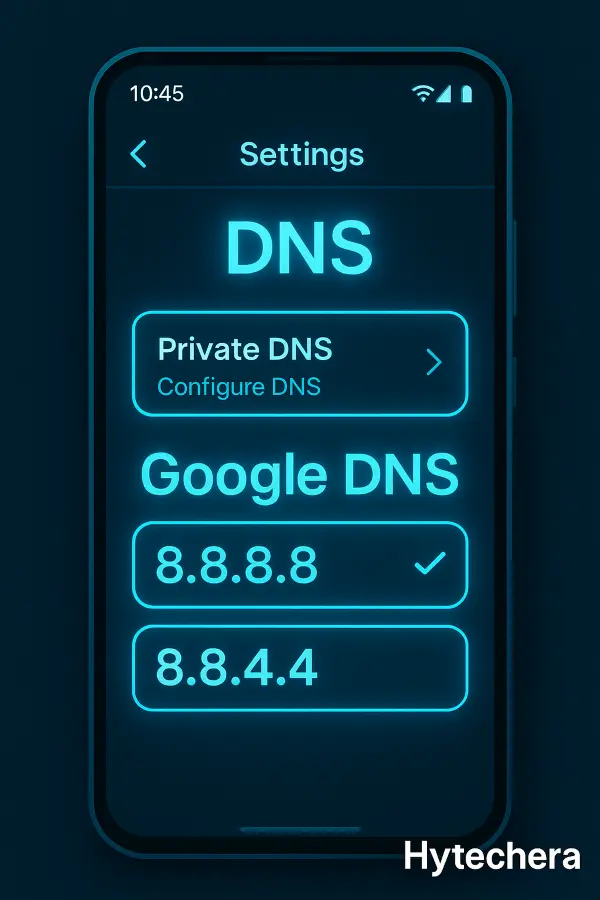
Use Google DNS:
- 8.8.8.8
- 8.8.4.4
Steps:
- Go to Wi-Fi settings
- Tap your network → Advanced
- Change “IP Settings” to Static
- Enter Google DNS in DNS1 & DNS2
- Save
If switching to Static creates issues → revert to DHCP but keep DNS in your router settings.
Google DNS fixed this issue many times on my Samsung phone, especially when using public Wi-Fi where default DNS servers are unstable.
For more details, you can check Google’s official DNS help page.
9. Reset Network Settings (Strong Fix)
This resets Wi-Fi, mobile data, and Bluetooth settings — useful if a software glitch is causing the issue.
Steps:
- Open Settings
- Go to System
- Tap Reset Options
- Select Reset Wi-Fi, Mobile & Bluetooth
This does NOT delete photos, apps, or files.
Best for:
- Random Wi-Fi disconnects
- Connected but no internet
- Wrong saved network info
- Hidden OS bugs in Android 13/14/15
10. Check for Android System or App Updates
Sometimes Google patches network issues through small system updates.
Check this:
- Settings → System → Software Update
- Update Google Play Services
- Update Chrome (affects web connectivity)
If your Android is outdated, some routers may have compatibility issues.
Also read –>> Phone Overheating Problem — Real Causes & Easy Fixes
11. Disable Metered Wi-Fi (Hidden Reason Many Don’t Know)
Android may block background internet if Wi-Fi is marked as Metered, thinking it costs money.
Fix:
- Settings → Wi-Fi
- Tap network
- Select Advanced
- Disable Metered Network
Metered mode = limited internet access → “No Internet” errors.
These steps help fix Wi-Fi connected but no internet on Android 2025 devices in most cases.
12. Turn Off “Private DNS” (Major Cause in Android 12–15)
If your Private DNS provider goes down, your Android shows full Wi-Fi signal but no internet.
Fix:
- Go to Network & Internet
- Tap Private DNS
- Select Off
- Restart Wi-Fi
If you want Private DNS, use:
dns.google
13. Remove Recently Installed Apps That Modify Network Settings
Some apps override DNS, proxy, or VPN settings:
- Ad blockers
- Antivirus apps
- Custom DNS changers
- Free VPN apps
- Security apps
- Firewall apps
If you installed any such app recently → uninstall and test again.
Also read –>> How to Fix Laptop Overheating: Simple Solutions for 2025
14. Check Router Settings (Advanced Users)
If your router has:
- MAC Filtering
- Device Limit
- Parental Controls
- Guest Mode
- QoS rules
it may block your device from getting internet.
Restarting the router often helps fix Wi-Fi connected but no internet Android problems, especially in 2025.

Check by logging into router:
Type in Chrome:
- 192.168.1.1
- 192.168.0.1
Then look for:
- Device list
- Blocked list
- DHCP settings
- Wi-Fi password mismatch
If your device is blocked → Unblock it.
You can also refer to Android’s official network troubleshooting guide for advanced steps.
15. Check if Your ISP Is Down
Even if your Wi-Fi router is ON, the internet line might be down.
How to check:
- Ask a neighbor using same ISP
- Check ISP app (JioFiber, Airtel, ACT)
- Look for red blinking light on router
- Try opening any website on a laptop
If ISP is down, nothing on your phone will work until it comes back.
16. Run a Ping Test (Checks if Internet Is Actually Working)
A ping test shows whether your phone can reach Google’s servers even when apps fail.
How to run ping test:
- Open Chrome
- Type in the search bar:
chrome://net-internals/#dns - Tap Clear host cache
- Then open:
8.8.8.8 - If it loads → internet is working
- If it doesn’t → DNS/Router issue
Ping tests help confirm whether the issue is with:
- Your phone
- Router
- ISP
- DNS
Also read–>> Common Laptop Problems and Solutions: Simple Fixes That Work
17. Clear Router Cache (Fixes Hidden Wi-Fi Bugs)
Routers store cache that sometimes gets corrupted, causing Wi-Fi to connect but not give internet.
Steps:
- Power OFF router
- Unplug from socket for 30 seconds
- Plug back and restart
This clears router RAM and fixes temporary network corruption.
18. Forget All Wi-Fi Networks (Strong System Cleanup)
If your Android saved too many Wi-Fi networks over months, it may conflict with DHCP settings.
Steps:
- Settings → Network → Wi-Fi
- Tap Saved Networks
- Delete all old / unused networks
- Reconnect to your main Wi-Fi
This forces Android to rebuild new network profiles.
19. Boot in Safe Mode (Detects Apps Causing Network Issues)
If a recently installed app is messing with your DNS or proxy settings, safe mode will reveal it.
Steps:
- Long-press power button
- Long-press Power Off
- Choose Safe Mode
In Safe Mode:
- System runs without third-party apps
- If Wi-Fi works in Safe Mode → an app is the problem
Uninstall suspicious apps after reboot.
20. Reset Developer Options (Hidden Wi-Fi Fix)
Some users enable developer options and change network settings unknowingly.
Fix:
- Go to Developer Options
- Tap Reset to default
This fixes:
- Aggressive Wi-Fi switching
- Restricted background data
- Wrong network flags
21. Try Using a Different Router Band (2.4 GHz vs 5 GHz)
Some Android models struggle with certain channels or 5 GHz networks.
Try switching:
- If you’re on 5 GHz → try 2.4 GHz
- If you’re on 2.4 GHz → try 5 GHz
This alone fixes connectivity issues on many Samsung, Redmi, and Realme devices.
22. Perform a Full Network Reset (Deep Fix)
If none of the above helps, a full network reset solves 99% software issues.
Steps:
- Settings
- System
- Reset Options
- Reset network settings
- Restart phone
This resets:
- Wi-Fi
- Bluetooth
- VPN
- DNS
- Mobile data APN
Your personal data remains safe.
23. Factory Reset (Last Option)
If everything else fails, this is your final fix.
Use it ONLY if the issue is caused by deep system corruption.
Steps:
Settings → System → Reset → Erase all data
Backup before doing this.
24. When to Contact Your ISP or Technician
You should contact support if:
- Wi-Fi works on the router but no internet
- Fiber ONT shows red LOS light
- Router does not assign IP
- Internet cuts off every few minutes
- Only specific apps fail to load on all devices
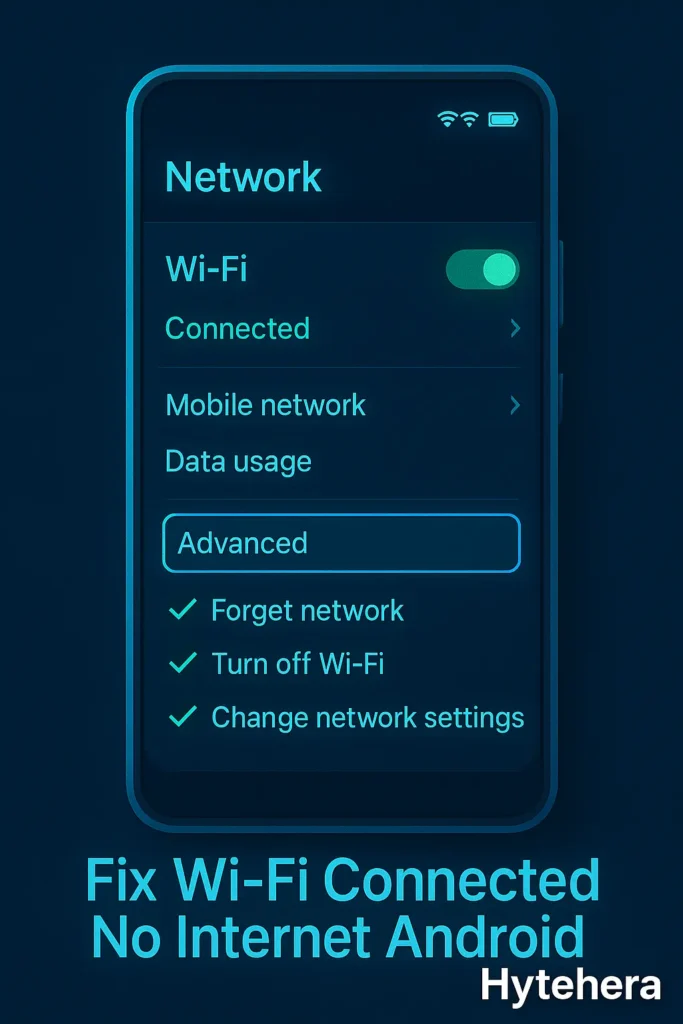
These methods can fix Wi-Fi connected but no internet on Android 2025 phones in most real-world cases.
25. Conclusion — Internet Issues Are Easy to Fix Once You Know the Cause
The “Wi-Fi connected but no internet” issue can come from your phone, your router, or even your ISP.
By following the step-by-step methods above, you can quickly identify where the problem is and fix it without waiting for support.
In my experience, Google DNS (8.8.8.8) and network reset are the two fixes that solve this issue 90% of the time — especially when using public Wi-Fi or switching between different networks.
Your Android device will likely work perfectly again after applying these fixes.
FAQs-Fix Wi-Fi Connected but No Internet on Android
- 1. Why does my Android say “Connected but no Internet”?
Common reasons include DNS failure, router issues, IP conflicts, ISP outage, or corrupted Wi-Fi settings.
- 2. Does changing DNS help?
Yes — using Google DNS (8.8.8.8 / 8.8.4.4) fixes most DNS-related connection drops.
- 3. Should I reset network settings?
If simple fixes don’t work, a network reset is a strong, safe solution.
- 4. Does this issue mean my phone is damaged?
No — it’s almost always a software or router issue.
- 5. Why does Wi-Fi work on other devices but not on my Android?
Your phone might have old network settings or an IP conflict.