Seeing the “Phone storage full” alert — even when you haven’t installed new apps — is one of the most frustrating Android problems.
The good news? You can fix phone storage full without uninstalling a single app.
This 2025 guide explains why your storage gets full, what hidden files actually consume space, and the safest ways to clean your phone instantly.
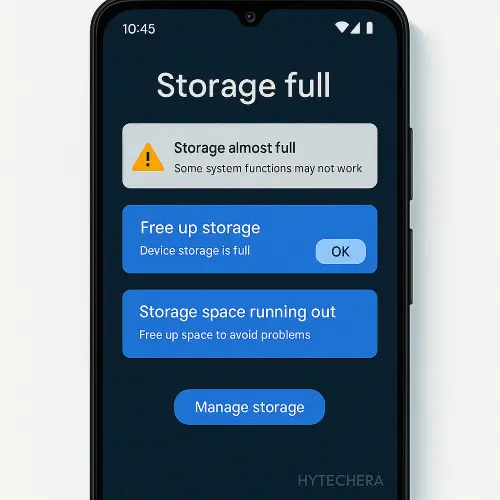
I recently faced the same issue on my Samsung device — despite having 128GB storage, the “Other” category suddenly jumped to 20GB. After checking system logs and using Google’s official cleanup tools, I discovered cached media folders and leftover files from deleted apps that were silently filling space.
These same solutions will work for you too.
Why Your Phone Storage Appears Full (Even If You Didn’t Add Anything)
Most users think apps are the main problem, but real storage consumption often happens in the background.
Here are the actual reasons your phone shows “storage full”:
Google also explains how Android calculates storage usage in its official Android storage overview.
1. App Cache Growing Over Time
Apps like Instagram, YouTube, Facebook, Chrome, and Snapchat store:
- Temporary files
- Thumbnails
- Offline content
- Search data
These can grow to 2–6GB per app.
2. WhatsApp & Telegram Media Folders
Messaging apps download:
- Images
- Videos
- Documents
- Status photos
- Voice notes
These folders silently store years of media unless cleaned.
3. Duplicate Files & Screenshots
People often don’t realize how many things get duplicated:
- Copies of the same images
- Downloaded reels
- Edited versions
- WhatsApp forwarded images
- Screenshots that pile up
Screenshots alone can reach 300–500MB.
4. Hidden “Other Storage” / System Data
This is the biggest space hog.
It includes:
- Temporary system files
- Corrupted thumbnails
- App remnants from uninstalled apps
- Crash logs
- Temp files from updates
This section can explode unexpectedly — sometimes from 4GB to 15GB.
5. Offline Downloads You Forgot About
Examples:
- Spotify offline playlists
- Netflix downloads
- YouTube offline videos
- Chrome offline pages
These easily consume several gigabytes.
6. Backed-Up Photos Still Stored Locally
Even after syncing to Google Photos, original images may remain on the device unless manually freed.
Quick Ways to Fix Phone Storage Full Without Deleting Apps
Now let’s get into the actual solutions. These methods are safe, reversible, and work on almost all Android phones in 2025.
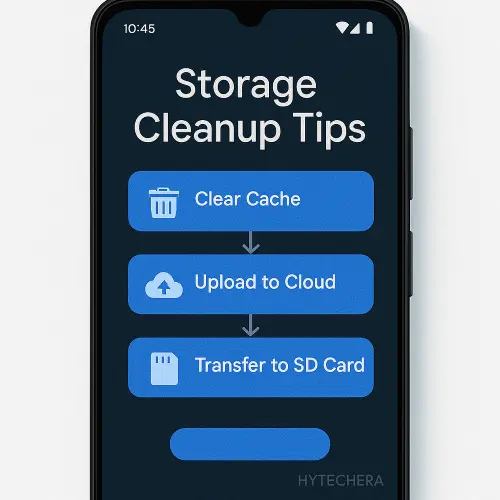
1. Clear App Cache (NOT App Data)
Clearing cache removes temporary files without affecting login, settings, or personal data.
Apps that build huge cache files:
- YouTube
- Chrome
- Google Maps
- Snapchat
How to do it:
- Go to Settings → Apps
- Select the app
- Tap Storage
- Tap Clear Cache
On my phone, clearing cache from just Instagram and Chrome freed almost 3.5GB instantly.
⚠️ Do NOT tap “Clear Data” — that will reset the app.
Also read –>> Best Free AI Note-Taking Apps for Android in 2026 (Smart Notes Guide)
2. Use Google Files “Free Up Space” Feature
Google Files is one of the safest cleanup tools because it’s built by Google and doesn’t delete important data blindly.
What it removes:
- Junk files
- Duplicate images
- Old memes
- Unused APKs
- Large files you forgot about
Steps:
- Install Files by Google
- Open the app
- Tap Clean
- Review suggestions
- Tap Free up space
This alone can clear 2–10GB, depending on usage.
3. Clean WhatsApp & Telegram Media (Biggest Space Saver)
Messaging apps are the #1 hidden storage killers.
Clean WhatsApp safely:
- Open WhatsApp
- Go to Settings → Storage and Data
- Tap Manage Storage
- Sort by Largest First
- Delete old videos and forwarded files
You can delete media without deleting chats.
After cleaning WhatsApp videos older than one year, I recovered 8GB without losing any important messages.
4. Remove Offline Downloads (Music & Video Apps)
Offline content often stays forgotten.
Check these apps:
- Spotify
- YouTube
- Netflix
- Prime Video
- Podcasts
What to do:
- Delete old downloads
- Reduce download quality
- Disable auto-download on Wi-Fi
This can free multiple gigabytes in minutes.
5. Move Photos & Videos to Cloud (Without Losing Them)
Cloud storage is the safest long-term fix.
Best options:
- Google Photos
- Google Drive
- OneDrive
Steps using Google Photos:
- Open Google Photos
- Back up photos
- Tap Free up space
- Local copies are removed — cloud copies stay safe
⚠️ Make sure backup is complete before freeing space.
6. Delete Duplicate Files & Old Screenshots
Most people don’t realize how many duplicates they have.
Easy cleanup areas:
- Screenshots folder
- Downloads folder
- Edited photo versions
- Meme images
Use Files by Google or your phone’s Gallery “Duplicates” option.
7. Move Files to SD Card or USB OTG (If Supported)
If your phone supports external storage:
- Move videos
- Move large documents
- Move backups
USB OTG is especially useful for quick cleanup.
Deep Cleanup Tricks (Advanced but Safe)
These steps are optional but effective when storage still looks full.
8. Clear System Cache (Recovery Mode)
This does NOT delete personal data.
General steps:
- Power off phone
- Hold Power + Volume Up
- Enter Recovery Mode
- Select Wipe Cache Partition
- Reboot
This fixes storage miscalculations and temp file buildup.
9. Check “Other Storage” Using Storage Analyzer Apps
Apps like DiskUsage help visualize what’s using space.
Look for:
- Leftover folders
- App remnants
- Temp directories
Delete only what you recognize.
10. Restart Phone After Cleanup (Important)
Android sometimes miscalculates storage until rebooted.
A simple restart often fixes “storage still full” warnings.
What If Phone Storage Still Shows Full? (Common Bugs & Fixes)
Sometimes, even after cleaning files and cache, Android still shows “Storage Almost Full.”
This usually happens due to system glitches, not because your phone is actually full.
1. Storage Index Bug
Android occasionally fails to recalculate freed space.
Fix:
- Restart your phone
- Wait 5–10 minutes
- Recheck storage
This alone fixes the issue for many users.
2. Media Scanner Error
When thousands of files are deleted at once, Android’s media scanner can get stuck.
Fix:
- Restart the device
- Or toggle Airplane Mode ON → OFF
- Or clear cache of Media Storage (advanced users)
3. App Residual Files
Some apps leave folders behind even after cleanup.
Fix:
- Open Files by Google → Browse → Internal Storage
- Check folders of apps you no longer use
- Delete only folders you clearly recognize
⚠️ Never delete system folders unless you’re sure.
4. System Update Leftover Files
After major Android updates, leftover files may remain.
Fix:
- Clear cache partition (as explained in Part 2)
- Restart phone
Also read –>> How to Fix Wi-Fi Connected but No Internet on Android
How to Prevent Phone Storage from Filling Again
Fixing storage once is not enough. These habits keep your phone clean long-term.
1. Disable Auto-Download in WhatsApp & Telegram
Set media download to manual for photos and videos.
2. Clean Cache Once a Month
A simple monthly cache cleanup can save 5–10GB yearly.
3. Use Cloud Backup Smartly
- Enable auto-backup
- Use “Free up space” regularly
- Don’t keep duplicate cloud + local copies
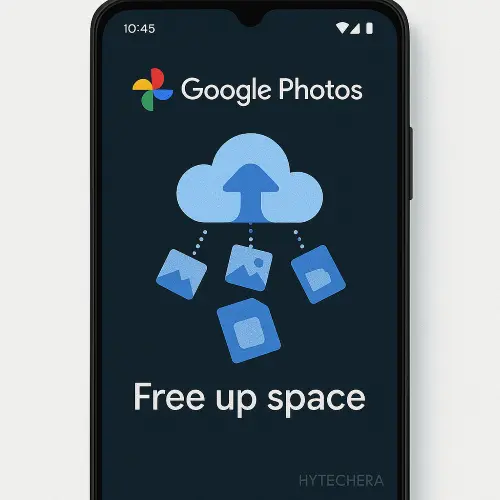
Google Photos also offers a built-in free up space feature to safely remove backed-up files from your device.
4. Delete Screenshots Weekly
Screenshots pile up faster than you think.
5. Monitor Storage Once a Month
Open Settings → Storage and review usage.
In my case, the main culprit wasn’t apps or photos — it was WhatsApp videos and system cache.
After clearing cache, removing old forwarded videos, and using Google Photos’ “Free up space” option, my storage dropped from 92% full to 63% in under 20 minutes — without uninstalling any app.
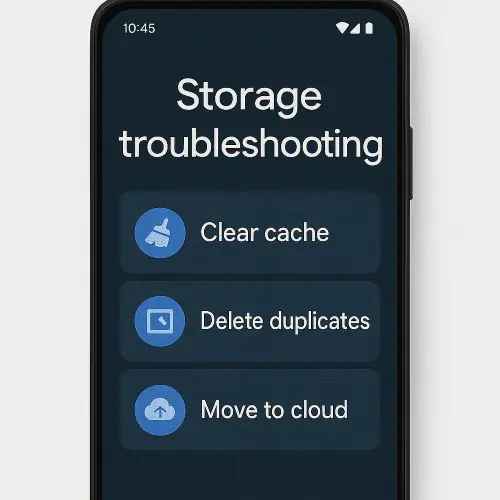
This is why I always recommend checking cache + messaging apps first.
Most Android users can fix phone storage full problems permanently by clearing cache and managing hidden files correctly.
Also read –>> Phone Battery Draining Fast? 15 Reasons & Fixes 2025
Conclusion — You Don’t Need to Delete Apps to Fix Storage Full
If your phone storage is full, deleting apps should be your last option, not the first.
In 2025, Android provides enough tools to manage storage safely:
- Clear cache
- Clean messaging media
- Remove offline downloads
- Use cloud storage
- Fix system glitches
- Maintain simple habits
By following this guide, you can fix phone storage full issues permanently, without losing apps, data, or settings.
FAQs- How to Fix Phone Storage Full
- 1. Does clearing cache delete app data?
No. Cache removal only deletes temporary files. Your login and data stay safe.
- 2. Why does “Other storage” take so much space?
It includes temp files, app remnants, system cache, and logs.
- 3. Is Google Files safe to use?
Yes. It’s developed by Google and doesn’t delete anything without confirmation.
- 4. Will moving files to cloud delete them permanently?
No. Files stay in the cloud and can be accessed anytime.
- 5. Should I factory reset my phone to fix storage?
Only as a last resort. Most storage issues can be fixed using this guide.