AI photo editing has completely changed the way we enhance, fix, and redesign images. Whether you’re a student creating Instagram posts, a YouTuber making thumbnails, or someone who just wants clean and polished photos, the right AI tool can save hours of work. The best part? You don’t need Photoshop… and you don’t need to pay. This guide explains the best free AI tools to edit photos in 2025 and how beginners can get watermark-free, high-quality results easily.
In 2025, several AI photo editors now offer professional-quality editing with zero watermark, even in their free versions. But with so many tools in the market, it’s confusing to understand which ones are really free, and which ones force a watermark during export.
I personally tested more than 25 tools, checked their export quality, free features, AI accuracy, and how beginner-friendly they are. Based on that, here are the best options.
1. What Actually Matters When Choosing a Free AI Photo Editor
Before jumping into the tools, it’s important to know what makes an AI editor worth using. Many tools are fast, but only a few give watermark-free results and good-quality output.
The first thing to check is watermark policy. Some tools give perfect edits but spoil the result by adding a watermark during download. If you are searching for the best free AI tools to edit photos in 2025, the most important thing to check first is watermark-free export. The second important factor is resolution—you don’t want a tool that reduces photo quality. You also need to consider privacy, especially since AI apps require uploading personal pictures.
Here are the main things you should consider while choosing an AI photo editor:
✔ What to Look For :
- Watermark-free export
- High resolution output (1080p or 2K minimum)
- AI features you actually need (retouch, background removal, object erase)
- Mobile + browser support
- Good privacy policy (no photo reuse for AI training)
These points help you avoid low-quality or unsafe apps.
2. Best Free AI Photo Editors in 2025 (No Watermark)
Let’s go through the tools that actually offer free editing without damaging your image quality. I’ll also explain which type of user each tool is best suited for. This makes it easier to pick the right app depending on your needs. Many creators now look specifically for the best free AI tools to edit photos in 2025 because paid tools have become too expensive.
2.1 Canva — Best Overall Editor for Beginners
Canva remains one of the most popular free editing tools because it combines simplicity with powerful AI features. Unlike many platforms, Canva’s free plan still allows watermark-free downloads, which makes it ideal for creators who want clean results without paying.
The strength of Canva lies in its all-rounder design. You get background removal, AI-based object erasing, image enhancement, filters, and preset editing tools. If you create social media content or thumbnails, Canva makes the entire process fast and effortless. I personally use Canva for YouTube thumbnails because the brightness, color grading, and AI retouching tools feel extremely polished for a free editor.
I personally rely on Canva whenever I create YouTube thumbnails or quick Instagram edits, and the AI background removal has saved me hours of manual work.
✔ Key features
- AI background remover
- Magic Edit (replace or modify objects)
- Retouching & lighting enhancement
- Social media templates
Best For: Students, creators, Instagram editing, thumbnail designing.
2.2 Photopea — Best Free Alternative to Photoshop
If you want a more advanced editor that supports layers, masks, and detailed retouching, Photopea is the closest free alternative to Photoshop. It works directly inside the browser without installation and supports PSD files, which is rare for a free tool.
Unlike Canva, Photopea gives more control to people who already have some editing experience. You can fine-tune shadows, highlights, colors, and perform complex edits usually requiring professional software. The good news? It exports without watermark, even for high-resolution images.
✔ Key features
- Photoshop-style editing
- PSD support
- AI enhancements
- No watermark exports
Best For: Freelancers, designers, people switching from Photoshop.
2.3 Pixlr — Fastest Free AI Editor for Quick Fixes
Pixlr is designed for people who want fast results. If you need a quick background removal, lighting correction, or simple beauty retouch, Pixlr processes images within seconds. It’s lightweight and works smoothly even on low-end laptops or phones.
The interface is simple, and the tool automatically improves lighting, sharpness, and clarity without requiring manual adjustments. If you want to fix a photo quickly before uploading it to Instagram or WhatsApp, Pixlr does the job perfectly.
✔ Key features
- Quick AI enhancements
- Background removal
- Retouch & color correction
Best For: Quick edits, smartphone users, low-end device users.
2.4. Fotor — Best for Natural Face Retouching
Fotor is one of the most balanced AI editors when it comes to portrait enhancement. If you want clean, natural-looking photos without making the face look fake or over-edited, Fotor performs surprisingly well for a free tool. Many users prefer it because the AI smoothens the skin, adjusts lighting, and enhances facial details in a subtle way.
Unlike typical beauty apps that blur the face excessively, Fotor preserves skin texture, which makes the results usable for professional profiles, resumes, and LinkedIn photos. It’s also a good choice if you take a lot of selfies or product shots that need light correction.
✔ Key Features
- AI retouching with natural finish
- Lighting adjustment
- Simple interface
Best For: Portraits, headshots, profile pictures, selfies.
2.5. Snapseed — Best Mobile App for No-Watermark AI Editing
Snapseed remains one of the most powerful free mobile editors in 2025. Although Google hasn’t added many new features recently, its AI-based tuning tools still provide excellent results without any watermark. It’s especially useful for mobile photographers who want full control.
If your phone heats while editing, read my guide on Phone Overheating Problem — Causes & Easy Fixes.
Also read–>> Phone Overheating Problem — Real Causes & Easy Fixes
What makes Snapseed stand out is the combination of professional tools (curves, selective editing, HDR) along with beginner-friendly one-tap enhancements. It also works offline, which many users prefer for privacy reasons.
✔ Why Snapseed is Great
- Full control over editing
- Pro-level tools (curves, healing, selective edit)
- No watermark even at high resolution
Best For: Mobile creators, outdoor photography, travel photos.
2.6. Remove.bg — Best for Background Removal (Free & Clean Results)
If your main need is cutting out backgrounds, especially for thumbnails, product listings, or Instagram posts, Remove.bg is unbeatable. The tool detects edges very accurately, even around hair and transparent objects. Most free background removers leave traces or rough edges, but Remove.bg does a far cleaner job.
The free version allows HD export without a watermark, which is rare. Many creators use it before moving the image into Canva or Photopea for further editing. I personally use Remove.bg when I need sharp cutouts for YouTube thumbnails.
I use Remove.bg regularly for thumbnail cutouts, and even with messy hair or low light photos, the edges come out far cleaner than most paid apps I’ve tried.
✔ Key Uses
- Remove backgrounds in seconds
- Perfect for thumbnails & product photos
Best For: YouTube thumbnails, ecommerce images, posters.
2.7. Adobe Express Free — Best for AI Filters & Smart Enhancements
Adobe Express (formerly Adobe Spark) has improved a lot in 2025. The free version now includes AI-powered color enhancement, filters, and automatic styling that give photos a polished look. You also get Adobe-quality presets that instantly make an image look more cinematic or professional.
Even though Adobe Express offers a paid plan, the free version is still one of the best watermark-free tools available. The design system feels high quality, and the AI does a great job at balancing highlights, shadows, and skin tones.
✔ Notable Features
- Adobe quality filters
- Smart enhancement AI
- No watermark on photo exports
Best For: Aesthetic edits, cinematic looks, social media content.
2.8. Luminar Neo Trial (100% Watermark-Free for Basic Editing)
Luminar Neo is usually a paid software, but most people don’t know that the free trial allows watermark-free exports for basic edits. The AI Sky Replacement and AI Portrait tools are exceptionally good, especially if you want more dramatic effects.
The editing quality is higher than most free AI tools, but since it’s a trial, it’s best suited for users who need high-end edits for a short period — like a batch of photos, event shots, or a photoshoot.
✔ Where Luminar Helps
- Sky replacement
- Portrait enhancement
- Color correction
Best For: Photographers, event images, landscape edits.
3. Quick Comparison Table
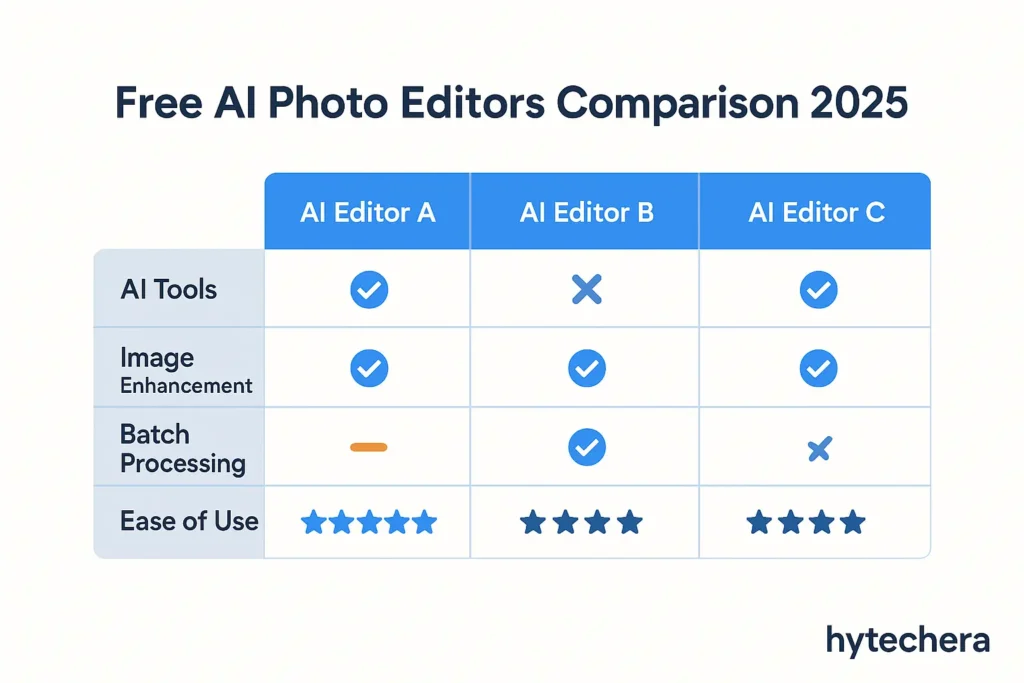
| Tool | Best For | Watermark Status | Ease of Use |
| Canva | Social media, thumbnails | No watermark | Very easy |
| Photopea | Advanced editing | No watermark | Medium |
| Pixlr | Quick fixes | No watermark | Easy |
| Fotor | Portraits | No watermark | Easy |
| Snapseed | Mobile edits | No watermark | Easy |
| Remove.bg | Background removal | No watermark | Very easy |
| Adobe Express | Polished edits | No watermark | Easy |
| Luminar Neo | High-end effects | No watermark (trial) | Medium |
4. Pro Tips to Get the Best Results with Free AI Photo Editors
Good AI tools can enhance your photos, but your technique also matters. Many beginners rely fully on AI and sometimes end up with unnatural results. With a few simple habits, you can make your edits look clean and realistic.
Always start with high-resolution images. AI performs poorly on low-quality or blurry pictures. Before applying filters, adjust the exposure and sharpness to balance the base image. If the tool offers manual sliders, use them lightly instead of relying only on one-tap presets. It’s also helpful to zoom into the image and check the details. Sometimes AI smoothing can remove natural skin texture, so keep the retouch strength low for portraits.
✔ Quick Tips
- Use high-resolution photos
- Adjust lighting before applying filters
- Keep retouching strength low
- Export in PNG for better clarity
- Avoid over-saturation
These small steps improve your final output dramatically.
5. Privacy & Data Safety Before Uploading Photos to AI Tools
AI photo editors are extremely convenient, but many users forget the most important factor: privacy. Every time you upload a photo to an AI tool, you are trusting the platform with your personal image. In 2025, with so much facial recognition technology and data misuse, you must be careful about where your images are going.
According to Kaspersky’s official safety guidelines, users should avoid tools that store images without an auto-delete policy
Most reputable tools clearly state that images are temporarily processed and then deleted. But some lesser-known apps might store your photo, use it for training datasets, or even share it with third-party companies. That is why choosing the right platform matters as much as choosing the right editing feature.
Before uploading any personal photo, especially a selfie or ID-related image, quickly check the platform’s policy. If the tool does not mention data deletion or privacy terms, it’s better to avoid it. Free tools may not always mean unsafe, but it’s important to stay informed.
For safe internet usage, check my Public Wi-Fi Safety Guide 2025
Also read–>> For safe internet usage, check my Public Wi-Fi Safety Guide 2025
I once uploaded a personal photo to an unknown editing site and later realized the platform didn’t mention how long they store user images — since then, I only use trusted apps.
✔ Before uploading, check for:
- Whether the tool deletes your images
- Whether it uses your photo for AI training
- Whether it stores EXIF/location data
- Whether it uses encryption during upload
Taking 10 seconds to verify this can protect your identity and data online.
6. Tips for Mobile & Low-Bandwidth Users (Especially for India)
Not everyone has high-speed Wi-Fi or a powerful device. Many students, creators, and beginners use budget smartphones and mobile data — especially in India. The good news is that most of the AI tools listed earlier work smoothly even on low-end devices.
Google’s official image safety documentation also suggests using trusted platforms that mention data processing clearly.
Living in India, I often edit photos on mobile data, and tools like Pixlr and Snapseed consistently load fast even with weak network signals.
When using these tools on mobile data, try to avoid uploading large RAW or ultra-high-resolution files. They take longer to upload and process. Instead, resize the image slightly before editing—this reduces data consumption without hurting quality too much.
Some tools like Snapseed and Photopea work partially offline, which is helpful if you want to edit without wasting mobile data. If the tool offers a “Lite” or “Mobile View,” always switch to it. It loads faster and uses less RAM.
✔ Tips for low-data users:
- Use mobile-friendly tools like Pixlr, Snapseed, Canva
- Avoid editing 10–20MB images on data
- Clear browser cache if tool slows down
- Use offline editing features when possible
These small adjustments make editing faster and smoother.
7. Common Mistakes to Avoid While Using AI Photo Editors
Even though AI tools make editing easy, many beginners repeat the same mistakes and end up with over-edited or unrealistic photos. Understanding what not to do is just as important as knowing the right tools.
In my early editing days, I often overused smoothing filters, and many of my photos ended up looking plastic. It took time to understand that subtle edits look far more professional.
One common mistake is overusing beauty filters. Excessive smoothing removes natural skin texture and makes the image look artificial. Another mistake is relying too much on one-tap AI enhancements without checking how the final image looks in different lighting. Always zoom in and check details like edges, shadows, and facial lines.
Another issue is exporting in low resolution. Some tools automatically reduce the quality unless you manually select HD or PNG. Always check the export settings before downloading the final image. Lastly, avoid uploading sensitive images (like ID cards or personal documents) to AI platforms.
✔ Avoid these mistakes:
- Using too much smoothing or blur
- Ignoring export resolution
- Uploading sensitive images
- Over-saturating colors
- Not checking edges after background removal
Following these guidelines will keep your images clean, professional, and visually appealing.
Conclusion — Which Free AI Tool Should You Start With?
Choosing the right AI photo editor becomes easy once you understand your needs. If you want an all-rounder tool that works for almost everything, Canva is the best place to start. For fast edits, Pixlr is excellent. If you want professional-level control similar to Photoshop, Photopea stands out. And for background removal, Remove.bg is unmatched.
AI photo editing in 2025 is fast, accurate, watermark-free, and accessible to everyone. Whether you’re a beginner or a creator looking to improve your images, the tools on this list will save you time and deliver high-quality results without costing anything.
You don’t need expensive software anymore — just choose the tool that fits your style and start editing.
Now that you know the best free AI tools to edit photos in 2025, you can start editing like a pro without paying anything.
FAQs- Best Free AI Tools to Edit Photos in 2025
- 1. Which AI tool is completely free with no watermark?
Canva, Photopea, Pixlr, Snapseed, Remove.bg (HD), and Adobe Express offer watermark-free exports in their free versions.
- 2. Which tool is best for removing backgrounds?
Remove.bg gives the cleanest cutouts, especially around hair and complex objects.
- 3. Which tool is best for face retouching?
Fotor and Snapseed provide natural-looking retouching without making the face look plastic.
- 4. Are these AI tools safe for private photos?
Most major tools are safe, but always check their privacy policy. Avoid uploading extremely personal images to unknown websites.
- 5. Can beginners use these tools easily?
Yes. Canva, Pixlr, Snapseed, and Remove.bg are very beginner-friendly. Photopea is more advanced but still manageable with practice.
- 6. Can I create YouTube thumbnails using these tools?
Absolutely. Canva and Pixlr are perfect for thumbnails, text styling, and color enhancement.
- 7. Is AI editing better than manual editing?
For quick tasks, yes. For professional-level projects, mixing AI + manual editing gives the best results.