Smartphone touch screens are one of the most used parts of your device — so when they become unresponsive, it feels like your phone is broken. Phone touch screen not responding is a common issue caused by software glitches, app conflicts, or hardware-related problems. Whether the screen fails to register taps, swipes, or only responds in certain areas, this can interrupt work, communication, and daily life.

In this guide, we’ll explain the real reasons your phone touch screen might not be responding properly and give you practical fixes you can do at home before rushing to a repair shop. This isn’t just guessing — we’ll combine official Android support insights, common hardware and software behaviors, and real-user patterns to help you understand what’s going wrong and how to correct it.
Some issues are caused by software settings, others by hardware problems, and many users misinterpret the symptoms. Understanding the root cause is essential.
Why Phone Touch Screens Become Unresponsive
There are several reasons a touch screen might stop responding fully or partially. These generally fall into two categories: software issues and hardware problems.
1. Software Glitches & System Bugs
Your phone’s operating system manages touch input through a combination of drivers and touch interface software. Sometimes after an update or an app installation, a glitch can disrupt the touch input response layer. Official support resources note that software conflicts — including driver incompatibilities and system update issues — can cause touch responsiveness problems.
Google also explains how software glitches can affect touch screen responsiveness on Android devices.
2. Screen Protector or Case Interference
Physical accessories like thick screen protectors or poorly fitting cases can sometimes interfere with touch sensitivity. A layer between your finger and the actual glass can reduce responsiveness or cause delayed input recognition.
This is common on large displays where edge sensitivity is high.
3. Moisture, Dirt, or Debris on the Screen
Touch screens rely on electrical conduction from your finger. Moisture, sweat, dust, or tiny debris spots can interfere with this conduction, leading parts of the screen to become unresponsive or erratic.
In real usage, this is one of the most often overlooked causes.
4. Hardware Damage
Drops, pressure, or impacts can damage the digitizer — the layer beneath the glass that detects touch. Unlike typical scratches, this damage isn’t always visible, but it can result in “dead zones” where the screen doesn’t register touch.
This is often diagnosed when only specific areas of the screen are unresponsive.
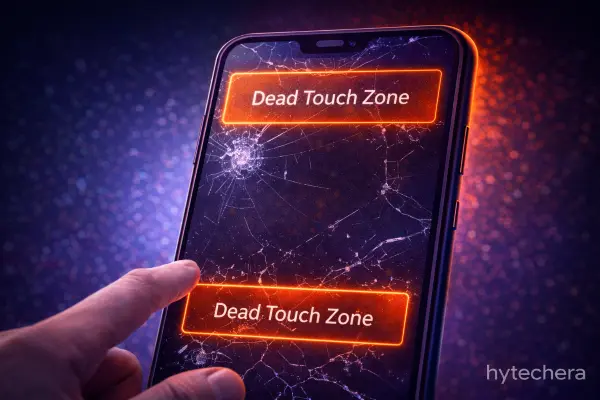
Lifewire outlines common hardware-related reasons behind unresponsive touch screens and when replacement is needed.
5. Overheating or Battery Drain
When a phone overheats or has low battery, the system may temporarily reduce hardware responsiveness to conserve power or prevent damage. This can impact touch responsiveness in extreme cases.
Long-term battery or thermal issues can exacerbate this pattern.
In my personal use of Android devices, I’ve seen touch unresponsiveness occur right after a major system update, even when the hardware was fine. After clearing a small software cache and rebooting in safe mode, the screen responded normally again, which tells us that not all touch issues are physical; many are hidden software interactions.
Common Causes + Fixes That Actually Work
Now that you understand why a phone touch screen can stop responding, let’s go deeper into the most common real-world causes and the safe fixes you should try before assuming the screen is damaged.
Many users jump straight to hardware replacement, but in reality, a large percentage of touch issues are software or usage-related.
6. App Conflicts Causing Touch Lag or Freezing
Some apps run overlays, accessibility services, or background processes that interfere with touch input. Screen recorders, floating widgets, launchers, and certain gaming tools are common examples.
When these apps misbehave, touch input may:
- Lag
- Freeze temporarily
- Respond only after multiple taps
✅ Smart Fix
- Restart your phone in Safe Mode
- Test touch responsiveness
- If the screen works fine in Safe Mode, an app is causing the issue
Uninstall recently installed or suspicious apps one by one.
7. System Cache or Corrupted Temporary Files
Over time, cached system files can become corrupted, especially after OS updates. This can cause delayed or inconsistent touch input without any visible errors.
✅ Smart Fix
- Restart the device
- Clear system cache (if available on your phone)
- Update your phone to the latest stable version
This often resolves random touch response issues after updates.
8. Screen Calibration Problems
Touch screens rely on calibration to accurately detect touch points. If calibration is off, the screen may register touches incorrectly or ignore them entirely in certain areas.
✅ Smart Fix
- Use built-in calibration tools (if available)
- Reset display or accessibility settings
- Disable any touch sensitivity tweaks added by third-party apps
Calibration problems are more common on older devices.
9. Ghost Touch Issues
Ghost touch occurs when the screen registers touches you didn’t make. This can happen due to:
- Faulty chargers or cables
- Electrical interference
- Moisture inside the screen
- Damaged digitizer
✅ Smart Fix
- Disconnect chargers and accessories
- Clean the screen thoroughly
- Use original or certified chargers only
If ghost touch persists, it may indicate hardware damage.
10. Screen Sensitivity Settings
Some phones allow you to adjust touch sensitivity, especially when using screen protectors. Incorrect settings can reduce touch accuracy or responsiveness.
✅ Smart Fix
- Enable “Increase touch sensitivity” (if available)
- Remove and reapply screen protectors
- Avoid very thick or low-quality protectors
Small changes here can make a big difference.
On one of my older phones, touch issues appeared only while charging. The problem turned out to be a low-quality charging cable causing electrical interference. Switching to the original charger instantly fixed the issue, proving that touch problems aren’t always screen-related.
Mistakes to Avoid When Touch Screen Is Not Responding
At this stage, you’ve already tried the safest fixes. Now it’s important to understand what actions can actually make the problem worse and when a repair is unavoidable.
Many users damage their phones further by following incorrect advice.
1. Don’t Force Restart Repeatedly
Restarting once or twice is fine, but repeated forced reboots can corrupt system files and worsen touch issues.
2. Avoid Random Calibration Apps
Most third-party “touch calibration” apps don’t truly recalibrate hardware and may introduce more instability.
3. Don’t Ignore Moisture Exposure
Even minor moisture can slowly damage the digitizer. If your phone got wet, continuing to use it without drying can cause permanent damage.
4. Don’t Apply Pressure to “Fix” Dead Zones
Pressing hard on unresponsive areas may crack internal layers and permanently damage the display.
When Screen Replacement Is Actually Necessary
You should consider professional repair only if:
- Large areas of the screen don’t respond at all
- Touch works only intermittently despite all software fixes
- Ghost touches continue even without charger or accessories
- Visible cracks or discoloration appear
In these cases, the digitizer or display panel is likely damaged.
Also read –>>Mobile Data Draining Fast? Hidden Causes & Smart Fixes
Final Verdict — Should You Worry?
A phone touch screen not responding properly doesn’t always mean the screen is broken.
In many cases, the issue is caused by:
- App conflicts
- System cache corruption
- Charger interference
- Screen protector problems
Trying the correct fixes in the right order can save time and money.
In real usage, I’ve noticed that touch issues are often blamed on hardware too quickly. In multiple cases, removing a faulty charger or disabling a problematic app restored full screen responsiveness without any repair.
FAQs — People Also Ask
- Why does my phone touch screen work sometimes and not other times?
This usually indicates a software conflict, overheating issue, or early digitizer failure rather than a completely broken screen.
- Can a software update fix touch screen problems?
Yes. If the issue started after an update, installing the latest stable patch often resolves driver or compatibility issues.
- Does factory reset fix unresponsive touch screen issues?
It can fix software-related issues but won’t help if the digitizer is physically damaged.
- Can screen protectors cause touch problems?
Yes. Thick or poorly installed protectors can reduce touch sensitivity, especially near edges.