Installing apps from the Google Play Store is usually seamless — but sometimes installs fail, get stuck, or refuse to start entirely. These problems are frustrating because they can happen without warning, even on reliable connections or new devices.

In this guide, we’ll break down the real causes why apps may not install from the Play Store — from storage limits and Play Store glitches to system errors and settings issues — and walk you through practical fixes you can try at home. By understanding the true reasons behind installation failures, you can fix the issue faster and avoid repeated attempts that waste time and data.
Why Apps Sometimes Fail to Install from the Play Store
Before we dive into fixes, it helps to know what typically stops Android from installing apps:
- Insufficient Storage — the phone may lack enough space to download and unpack the app, especially larger ones. MakeUseOf
- Play Store or Play Services Glitches — corrupted cache/data can stop installs. Google Help
- Network or Connection Problems — even with good signal, instability can break downloads. Google Help
- Device or OS Compatibility — older Android versions may not support newer apps. BrowserStack
- Download Manager or System App Interference — internal Android services may block installs. GB Times
Apps don’t install simply because one or more of these factors are blocking the process. Understanding where the blockage can occur helps you choose the right fix instead of guessing.
The Real Causes Behind Play Store Installation Failures
Most Play Store installation problems don’t come from one big error. They usually happen because a small system requirement isn’t met—or because Android services temporarily misbehave. Understanding the cause saves you from trying random fixes.
Insufficient Storage (The Most Common Cause)
Even if your phone shows “some space available,” Android still needs extra temporary space to download, unpack, and install an app. Large apps, updates, and games require more space than their listed size.
What users often miss:
- Cache and temporary files silently fill storage
- System updates reserve hidden space
- App installation needs room to extract files
If storage is tight, installs may fail at the last step or never start.
When apps not installing Play Store errors appear, checking storage and system restrictions usually fixes the issue.
Also read –>> How to Fix Phone Storage Full Without Deleting Apps
Play Store Cache or Data Corruption
The Google Play Store relies on cached data to manage downloads and updates. Over time, this cache can become corrupted—especially after updates or interrupted downloads.
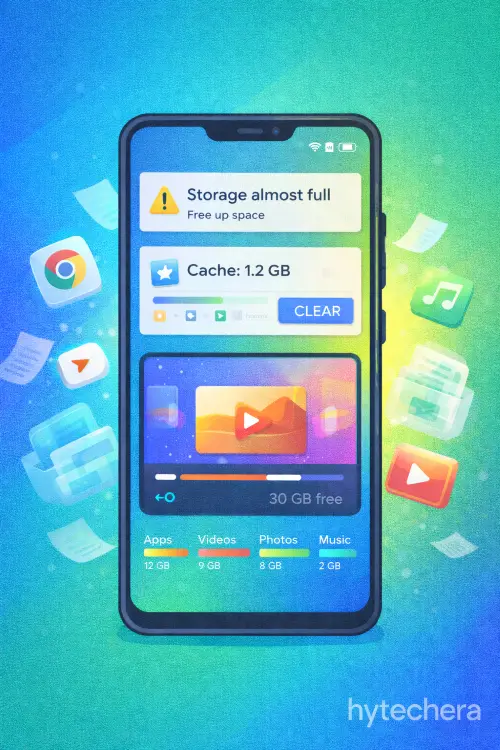
Typical symptoms include:
- “Pending” downloads that never move
- Apps downloading to 100% but not installing
- Repeated error messages without details
This issue is common and usually easy to fix once identified.
Google Play Services Issues
Google Play Services works behind the scenes to handle authentication, downloads, and app permissions. If it’s outdated or malfunctioning, installations can fail even when the Play Store looks fine.
This often happens:
- After Android OS updates
- When Play Services auto-updates fail
- On phones with aggressive battery optimization
Because it’s a system service, problems here affect all app installs.
Google Play Services handles authentication and downloads, and issues here can affect app installation across the device.
Network Instability (Even on “Good” Internet)
A stable connection matters more than speed. Play Store downloads can fail if:
- Wi-Fi switches between networks
- Mobile data drops momentarily
- VPNs interfere with Google servers
Many users assume their internet is fine because browsing works, but Play Store requires consistent connectivity during the entire download and install process.
App or Device Compatibility Problems
Some apps simply won’t install if:
- Your Android version is too old
- The device architecture isn’t supported
- Regional restrictions apply
In such cases, Play Store may show the app but fail during installation—or block the install entirely without a clear message.
Also read –>> Android 15 Beta Features Leaked: Everything New for 2026
Disabled System Apps or Download Manager
Android depends on background services like Download Manager to install apps. If these are disabled—intentionally or accidentally—Play Store downloads can stall or fail.
This often occurs after:
- Manual system tweaks
- Using aggressive “cleaner” apps
- Restoring backups from older devices
Background Restrictions & Battery Optimization
Modern Android versions restrict background activity to save battery. While useful, these restrictions can interrupt long downloads or installations.
If Play Store is limited in the background, installs may pause or cancel without warning—especially on budget or heavily customized phones.
Now that you understand why apps fail to install, let’s fix the problem properly. Instead of trying random solutions, follow this safe troubleshooting order. In most cases, one of the first few steps resolves the issue.
Step-by-Step Fixes (Try in This Order)
1. Free Up Enough Storage (Do This First)
Even if your phone shows available space, app installation needs extra temporary storage.
What to do:
- Delete unused apps
- Clear large app caches (videos, social apps)
- Remove downloaded files you no longer need
After freeing space, restart your phone and try installing again.
2. Clear Play Store Cache & Data
Corrupted cache is one of the most common reasons apps won’t install.
Steps:
- Go to Settings → Apps → Google Play Store
- Tap Storage
- Clear Cache
- If needed, clear Data (safe — won’t delete your account)
Repeat the same steps for:
- Google Play Services
- Google Services Framework
Then reboot the device.
Clearing corrupted Play Store cache often resolves install failures, as explained in Google Play’s official troubleshooting guide.
3. Check Internet Stability (Not Just Speed)
Switch your connection:
- Try installing using mobile data instead of Wi-Fi
- Or switch from mobile data to Wi-Fi
- Disable VPNs temporarily
If using Wi-Fi, restart your router once.
Also read –>> How to Fix Wi-Fi Connected but No Internet on Android
4. Enable Download Manager & Required System Apps
Some phones block background services unintentionally.
Check:
- Settings → Apps → Download Manager
- Make sure it’s Enabled
- Clear its cache if needed
Also ensure Google Play Services is enabled and updated.
5. Disable Battery Optimization for Play Store
Battery-saving features can interrupt downloads.
Steps:
- Go to Settings → Battery → App battery usage
- Find Google Play Store
- Set it to Unrestricted / No restrictions
This helps especially on phones with aggressive power management.
6. Check App Compatibility
If nothing works:
- Scroll down the app’s Play Store page
- Check Android version requirement
- Look for device compatibility notes
Some apps simply won’t install on older Android versions.
Common Play Store Error Messages (What They Mean)
- “App not installed” → storage or compatibility issue
- “Download pending” → cache, network, or background restriction
- “Something went wrong” → Play Services or account sync issue
These errors usually resolve after cache clearing and rebooting.
Android’s system services and background restrictions can block installations if not configured correctly, according to Android’s official support documentation.
What NOT to Do (Important)
- ❌ Don’t use unknown APK sites unless necessary
- ❌ Don’t factory reset unless all other fixes fail
- ❌ Don’t install multiple “cleaner” apps
These often create more problems than they solve.
On a mid-range Android phone, app installs once failed repeatedly despite good internet. The issue turned out to be background restrictions placed by battery optimization. Once Play Store was allowed to run unrestricted, installs worked normally again. This shows how small system settings can cause big issues.
Final Verdict
When apps won’t install from the Play Store, the problem is almost always fixable without drastic steps. Storage, cache, background restrictions, or connectivity issues are usually the real cause—not hardware failure.
By following a structured troubleshooting approach, you can fix Play Store install issues quickly and avoid repeating the problem in the future.
FAQs – Apps Not Installing from Play Store
- Why does Play Store show “Pending” forever?
Usually due to cache corruption, background limits, or unstable internet.
- Will clearing Play Store data delete apps?
No. It only resets the Play Store app itself.
- Can outdated Android versions block installs?
Yes. New apps may not support older Android versions.
- Is it safe to sideload apps if Play Store fails?
Only from trusted developers. Play Store issues should be fixed first.